
Round Image Corners
Round Image Corners with this free online tool, one picture at a time, and round corners on image files of any supported type. Set a corner radius, choose the output format and download the picture with smooth, rounded corners. You can use it without an account, and signed-in users skip the human check.
- JPEG cannot hold transparency, so the corners are filled with the background color (white unless you change it).
- Animated GIF or WebP files are rounded frame by frame only when the output is GIF or WebP with the animation option on.
- The result can be up to 20 MB. For large photos, use JPEG or WebP.
Drop an image here
PNG, JPG, WebP, AVIF, GIF, BMP or TIFF, up to 5 MB
From 0.1 to 50. 50 percent is the largest radius: a circle on a square picture, a pill shape on a wide one.
Rounded corners are transparent. PNG and WebP keep that. JPEG cannot hold transparency (the corners are filled with a color), and GIF has only on or off transparency, so the curve looks jagged.
Same keeps the file type (a GIF stays a GIF; BMP and TIFF are saved as PNG, AVIF as WebP).
Complete the human check to enable the button.
Result
Your image will appear here.
The free web tool takes images up to 5 MB, 30 per day. Signed in, the limit is 10 MB. The image keeps its pixel size unless you choose Make smaller.
Retention: web-tool results are deleted after 10 minutes and no history is kept. API results are kept 1 day on the free plan and 7 days on Starter and Pro (30 days on Business and Scale).
No account needed
30 images per day for free, no watermark.
Only your edit is applied
The rest of the picture is left as it is. Camera and location tags (EXIF, GPS) are not written to the result.
Deleted automatically
Web tool results are removed after 10 minutes.
Privacy: what you submit is used only to make this file. The working copy is deleted when the job ends, the result after 10 minutes. See the privacy policy.
Do this from your code
The same edit as an API request: send the image bytes, then poll the job. It needs an API key; a free account can create one.
curl -X POST "https://api.aiipworld.com/v1/image-jobs?op=image_edit&action=round_corners&radius=10&unit=percent" \
  -H "Authorization: Bearer $AIIPWORLD_API_KEY" \
  -H "Content-Type: image/png" \
  --data-binary @input.png

# returns {"job_id": "...", "status": "queued", "credits_reserved": 1}; then poll:
curl https://api.aiipworld.com/v1/jobs/JOB_ID -H "Authorization: Bearer $AIIPWORLD_API_KEY"
Batches
The web tool handles 1 image at a time. The API takes one request per image, so you can script as many as your plan allows.
Retention
Web-tool results are kept 10 minutes; free API results 1 day; Starter and Pro results 7 days; Business and Scale 30 days. The web tool allows 10 conversions per minute and 50 per day per visitor.
In one sentence
A free online tool that rounds the four corners of a picture with a radius in pixels or in percent of the shorter side, leaving transparent corners in PNG or WebP.
Key facts
- Input: one picture up to 5 MB in the free tool and 10 MB when signed in, and up to 16 MP (4096 x 4096); animated GIF and WebP are rounded frame by frame within the animation limits.
- Settings: the radius (1 to 8192 px, or 0.1 to 50 percent of the shorter side), save as the same type, PNG, JPEG, WebP or GIF, and quality for JPEG and WebP.
- A radius above half of the shorter side is reduced to that half and the result panel says so; in our test 500 px on an 800 x 560 px picture became 280 px, and 10 percent gave 56 px.
- The upload is deleted when the job ends and the result after 10 minutes; signed-in users pay 1 credit per file plus 1 credit for each started 5 MB of result beyond the first 5 MB and, for an animation, 1 credit for each started 10 MP of frames beyond the first 10 MP.
- Free without an account: up to 10 conversions per minute and 50 per day per visitor, no watermark. Signed in, each render costs 1 credit (100 free credits every month).
- Files are deleted automatically: 10 minutes after conversion without an account, 1 day with a free account.
- Developers can run the same job with POST https://api.aiipworld.com/v1/image-jobs?op=image_edit (the image as the request body, settings in the query string) and an API key (see the API docs page).
How it works
- Upload one picture in PNG, JPG, WebP, AVIF, GIF, BMP or TIFF.
- Enter a Corner radius. The page starts at 10.
- Choose Percent of the shorter side or Pixels in the Unit setting.
- Pick a Save as format. Use PNG or WebP if you want to keep the transparent corners.
- Click Round corners, then check the result panel before you download.
Example output
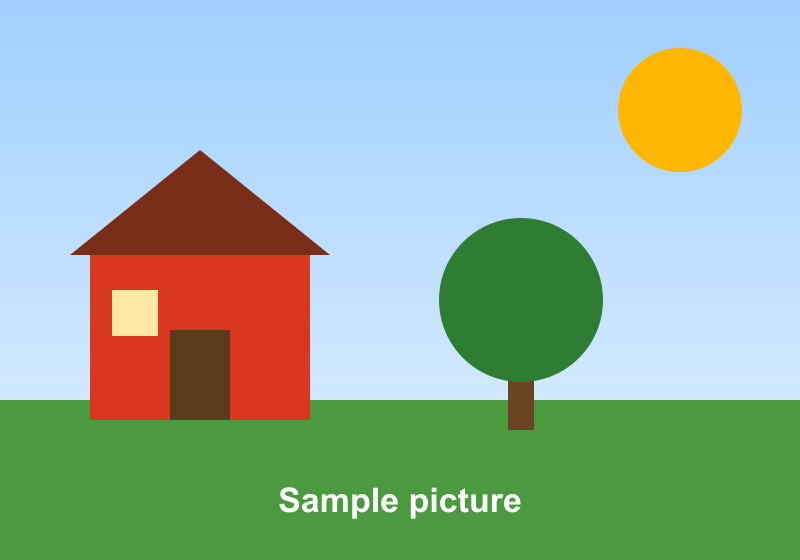
Original PNG, 800 x 560 px, 24 KB
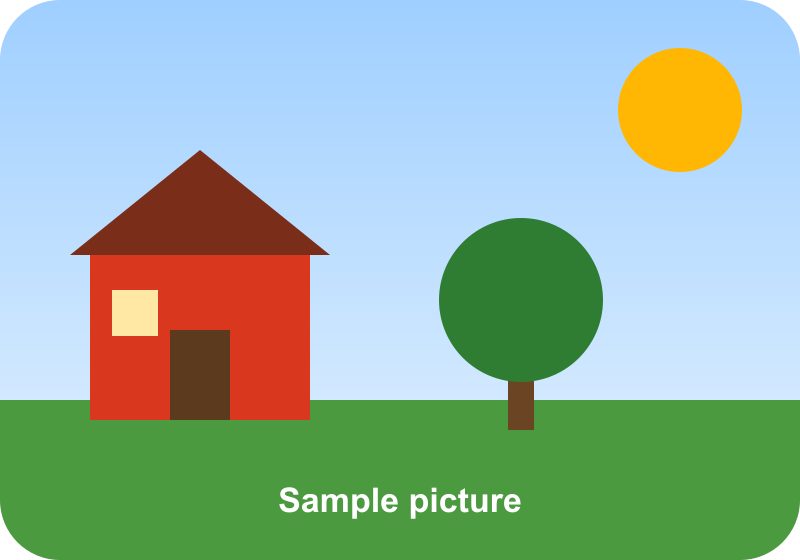
Radius 60 px: PNG, 800 x 560 px, 25 KB, transparent corners
How to Round Image Corners
Open the tool and upload your picture. To round corners image files, or to round corner photo files, the steps are the same. Enter a corner radius, choose a unit and click Round corners. The tool applies the same radius to all four corners and returns the picture with rounded edges.
The size of the picture does not change. Only the corners are cut into a smooth curve, and the area outside the curve becomes transparent. Results vary with the picture, so check the preview before you download.
- Use one picture per job.
- Start with the default radius of 10, then adjust it.
Choose the Corner Radius
The radius sets how far the curve reaches into each corner. In pixels it is a whole number from 1 to 8192. In percent it is from 0.1 to 50 of the shorter side.
A small radius gives slightly soft corners, and a larger one gives a rounder shape. The same setting can round edges of image files in any supported type. Try a few values on your picture and compare the result panel. A radius above 8192 px is refused.
Percent or Pixels
Percent of the shorter side is the default unit. It scales the curve with the picture, so the same setting looks similar on small and large files. Our test on an 800 x 560 px picture set to 10 percent gave a radius of 56 px, which is 10 percent of 560.
Pixels is better when you need an exact radius. The result panel shows the radius that was used in pixels, so you can confirm the value.
The Largest Radius for Round Image Corners
The largest value in percent is 50, which gives the biggest curve the tool allows. On a square picture it creates a circle. On a wide picture it creates a pill shape with rounded ends.
A radius larger than half of the shorter side is reduced to half of it. In our test, 500 px on an 800 x 560 px picture was reduced to 280 px. The result panel says what you asked for and what was used.
The Corners Are Transparent
Transparent corners need a format that can hold transparency. PNG and WebP keep them, and the curve stays smooth.
JPEG cannot hold transparency. If your input is a JPEG and you keep Same as the original, the result is saved as PNG and the panel says so. If you choose JPEG yourself, the corners are filled with the background color, which is white unless you change it.
- GIF transparency is either on or off, so the curve looks jagged.
Choose the File Format
Same as the original is the default. It keeps the type of the input, with a few exceptions. A GIF stays a GIF, BMP and TIFF are saved as PNG, and AVIF is saved as WebP.
Choose PNG for sharp edges and full transparency. Choose WebP for smaller files with transparency kept. JPEG suits pictures without a need for transparent corners. For JPEG and WebP, the quality setting runs from 1 to 100 and the default is 90.
Rounding an Animated GIF or WebP
Every frame gets the same rounded corners, and the frame delays and loop count are kept. This works when the output is GIF or WebP and the animation option is on.
In our test, a 24 frame 320 x 240 px GIF with a 20 percent radius became a 24 frame GIF of 91 KB. The edges were jagged, as the result panel warned. With PNG or JPEG output, only the first frame is used.
Limits: Size and Pixels
The result can be at most 40 MP. WebP results are limited to a maximum of 16,383 px on a side. A result over these limits is refused before any work is done, so the tool never shrinks it silently.
Free use without an account allows 30 jobs per day per visitor. Each uploaded picture can be up to 5 MB without an account and up to 10 MB when signed in. Each picture can be up to 16 MP (4096 x 4096) in width times height.
What to Check in the Result
Look at the result panel first. It shows the size of the result, the radius that was used, and any notes. If the radius was reduced, the panel says so.
Zoom in on the corners to check the curve. If you saved as JPEG, look for the background color that fills the corners. If the picture is an animation, check the GIF edges, which may look jagged.
Round Image Corners From Code
Send a POST request to https://api.aiipworld.com/v1/image-jobs with op set to image_edit and action set to round_corners. Send the raw picture bytes as the body, not JSON or multipart. Set Content-Type to image/png, image/jpeg, image/webp, image/gif, image/avif, image/bmp or image/tiff, and put the settings in the query string.
Authenticate with Authorization: Bearer <API key> or x-api-key. The response is 202 with a job_id. Poll GET /v1/jobs/:id, then download the result from download_url, which is a short-lived signed link. Each action accepts only its own parameters, so an unknown or misplaced parameter returns 400 invalid_params.
Possible errors include 400 invalid_params, 400 unsupported_image, 413 file_too_large, 402 insufficient_credits and 429 rate limited. A failed job can return invalid_input, image_too_large, animation_too_large, output_limit or timeout. The page shows a ready cURL, Node and Python example built from your settings. See /docs/ for the general API.
Privacy: What Happens to Your Picture
Your picture is sent to our server, and nothing is edited in the browser. The uploaded file is used only to make the result. The working copy is deleted as soon as the job ends, whether it succeeds or fails.
The result is deleted after 10 minutes in the free web tool, and no history is kept. Download links are short-lived. You must have the right to use what you upload, as set out in our Acceptable Use Policy. Camera and location tags are not written to the result.
Questions
Can I round image corners for free?
Yes, you can use the tool for free without an account, up to 30 jobs per day per visitor.
How do I round the corners of a photo?
Upload the photo, enter a corner radius, choose a unit and click Round corners. Then check the result panel and download the file.
What corner radius should I use?
Start with the default of 10 and adjust it to the look you want. Compare a few values, since results vary with the picture.
How do I make a picture a circle?
Use a radius of 50 percent on a square picture to get a circle. For a circle from any picture, the Circle Crop Image tool cuts a square first.
Why did the tool use a smaller radius than I typed?
A radius larger than half of the shorter side is reduced to half of it. The result panel shows the value that was used.
Why are the corners transparent?
The area outside the curve has no color, so the tool makes it transparent. PNG and WebP keep it, while JPEG fills it with the background color.
Can I save the picture with rounded corners as a JPEG?
Yes, but JPEG cannot hold transparency, so the corners are filled with white unless you change the background color. If your input is a JPEG and you keep Same as the original, the result is saved as PNG.
Can I round only one corner?
No, the tool gives all four corners the same radius. It does not round only some corners.
Does rounding corners change the picture size?
No, the size of the picture does not change. Only the corners are cut into a curve.
Can I round image corners in my own code?
Yes, use the image_edit operation with the round_corners action on the image-jobs endpoint. The page shows ready cURL, Node and Python examples.
Need this in your app or in bulk?
This tool runs on the same platform as the API, so the same image is one HTTP request from your code. A free account includes 100 credits a month.