
Add Page Numbers to PDF
Add Page Numbers to PDF files with this free online tool. It writes a page number on every page of one PDF and gives you a new file named numbered.pdf. Your original file is not changed. The numbers are digits and Latin letters only, in one fixed set of formats.
- The number is drawn on top of your page content. If your page has text in a corner, choose another position.
- Only digits and the English words Page and of appear. Chinese, Japanese, Korean and Cyrillic characters are not supported.
- Encrypted PDFs are refused. No password is accepted.
Drop a file here or choose one. Up to 10 MB per file without an account.
The format is fixed: digits, with the English words Page and of in two of the choices. You cannot add your own text.
Complete the human check to enable the button.
Result
Your PDF will appear here.
Without an account: 20 jobs per day, up to 10 MB per file, 100 pages. Signed in: up to 50 MB per file, 500 pages.
Retention: web-tool results are deleted after 10 minutes and no history is kept. API results are kept 1 day on the free plan and 7 days on Starter and Pro (30 days on Business and Scale).
No account needed
20 PDF jobs per day per visitor.
Pages are not re-drawn
The pages are copied or turned as they are, with no re-encoding, so text and images keep their quality.
Deleted automatically
Web tool results are removed after 10 minutes.
Privacy: what you submit is used only to make this file. The working copy is deleted when the job ends, the result after 10 minutes. See the privacy policy.
Do this from your code
The same job as API requests: upload each PDF, start the job with the upload ids, then poll it. It needs an API key; a free account can create one.
curl -X POST "https://api.aiipworld.com/v1/uploads" \
  -H "Authorization: Bearer $AIIPWORLD_API_KEY" \
  -H "Content-Type: application/pdf" \
  --data-binary @input.pdf   # returns {"upload_id": "UPLOAD_ID_1", ...}

curl -X POST "https://api.aiipworld.com/v1/pdf-jobs" \
  -H "Authorization: Bearer $AIIPWORLD_API_KEY" \
  -H "Content-Type: application/json" \
  -d '{"op":"pdf_page_numbers","params":{},"files":["UPLOAD_ID_1"]}'
# returns {"job_id": "...", "status": "queued"}; then poll:
curl https://api.aiipworld.com/v1/jobs/JOB_ID -H "Authorization: Bearer $AIIPWORLD_API_KEY"
Batches
The web tool works on one PDF at a time. Use the API for many files; each job takes one PDF.
Retention
Web-tool results are kept 10 minutes; free API results 1 day; Starter and Pro results 7 days; Business and Scale 30 days.
In one sentence
A free online tool that writes a page number on every page of a PDF, at one of six positions, in one of four formats (1; 1 / 12; Page 1; Page 1 of 12), from any first number, with the cover optionally skipped.
Key facts
- Input: one PDF up to 10 MB without an account (50 MB signed in), up to 100 pages (500 signed in); encrypted PDFs are refused.
- Settings: position (bottom or top, left, center or right), number format, first number (0 to 100000), font size (6 to 48 pt) and skipping the first page; the API also takes margin, color and a page range.
- The numbers are drawn in Helvetica on top of the page: only digits and the English words Page and of appear, so Chinese, Japanese, Korean and Cyrillic characters, emoji and your own words cannot be used.
- In our test a generated 6 page PDF of 51 KB gave a numbered PDF of 42 KB with the default settings; with the cover skipped the numbers ran from 1 to 5 on pages 2 to 6; results vary with the file.
- API: POST the PDF to https://api.aiipworld.com/v1/uploads, then POST https://api.aiipworld.com/v1/pdf-jobs with op pdf_page_numbers and the upload id, and poll GET /v1/jobs/:id.
- Free without an account: 20 PDF jobs per day per visitor, no watermark. Signed in, each job costs 1 credit, plus 1 credit for each started 20 MB of result beyond the first 20 MB (100 free credits every month).
- Files are deleted automatically: 10 minutes after conversion without an account, 1 day with a free account.
How it works
- Upload one PDF.
- Choose the position, such as bottom center or top right.
- Choose the number format, such as 1, 2, 3 or Page 1 of 12.
- Set the first number, the font size and whether to skip the cover.
- Start the job and download numbered.pdf from the result panel.
Example output
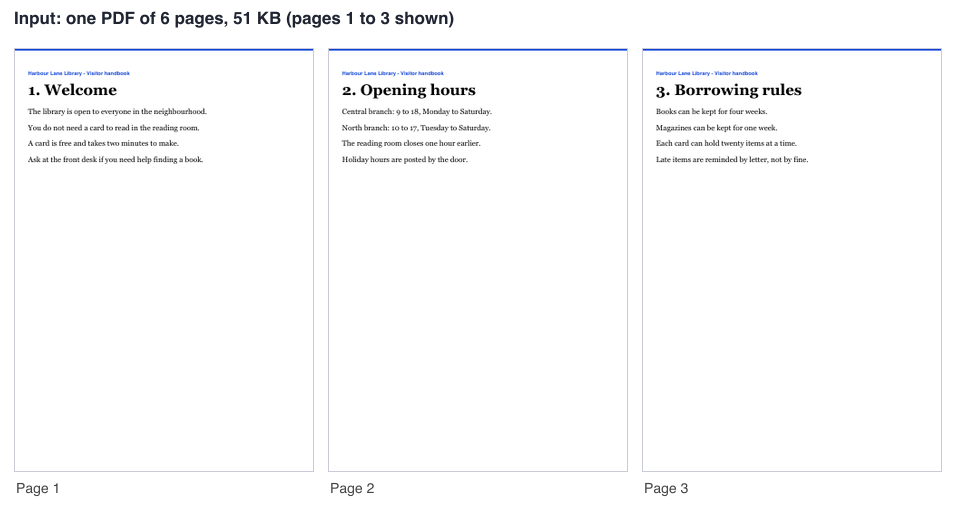
Input: one PDF of 6 pages, 51 KB (pages 1 to 3 shown)
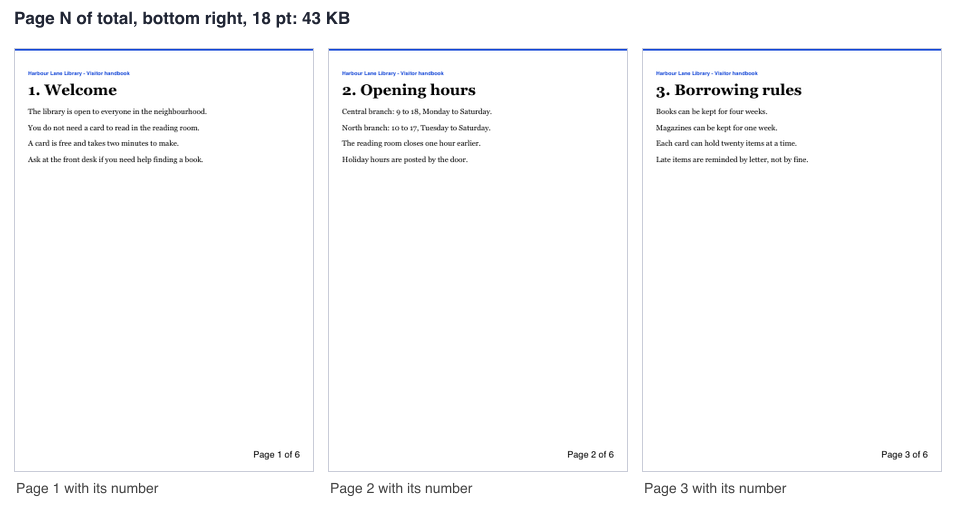
Page 1 of 6 format, bottom right, 18 pt: 6 pages, 43 KB
How to add page numbers to PDF files
Use this tool to add page numbers to a PDF in one job. These steps show how to add page number to pdf files and how to insert page number in pdf documents. Upload your file, set the options, and start the job. The tool adds the number as extra text on each page, so your existing pages are not redrawn.
The result is a new file called numbered.pdf. You can insert page numbers in PDF documents without changing the file you started with. The file is rewritten, so its size can change: in our test, a generated 6 page PDF of 51 KB with the default settings gave a 42 KB file. Check the result before you share it.
Choose the position
You can place the number at the bottom center, bottom left, bottom right, top center, top left or top right. Bottom center is the default. Pick the corner that keeps the number clear of your content.
Results vary with the file. A page with a header or a footer may need a different position. Check the first page of the result after each job.
- Bottom center is the default position.
- Use a top position if your footer has text.
Choose the number format
The tool offers four formats: plain numbers, a number with the total, Page 1, and Page 1 of 12. The 12 in these examples is only an example. The total is the number of the last numbered page.
You cannot type your own text. The format is fixed to these choices, so you cannot write a custom label for each page.
- 1, 2, 3 (default)
- 1 / 12, 2 / 12
- Page 1, Page 2
- Page 1 of 12, Page 2 of 12
Start at another number and skip the cover
Use the first number setting to choose where counting starts. The default is 1. You can enter any whole number from 0 to 100000.
To add page number to pdf pages after a cover, turn on "Do not number the first page (cover)". Numbering then starts on page 2. The second page gets the first number, so enter 2 as the first number if you want page 2 to show 2.
- With the cover skipped and first number 1, a 6 page PDF shows 1 to 5 on pages 2 to 6.
- With the cover skipped and first number 2, the same PDF shows 2 to 6.
Font size and where the number sits
The font size can be set from 6 to 48 points. The default is 10 points. A larger size makes the number easier to read, but it may overlap your content. Pages that are rotated by 90, 180 or 270 degrees get an upright number, placed by the visible orientation of the page.
Our test used a generated 6 page PDF. With Page 1 of 6 at the bottom right and font size 18, the text checked as Page 1 of 6 through Page 6 of 6. Results vary with the file, so check your own result.
Digits and Latin letters only
The numbers use the Helvetica font. Only digits and the English words Page and of appear. Chinese, Japanese, Korean and Cyrillic characters and emoji are not supported. The format cannot hold your own text, so you cannot write Seite 1 or 第1ページ.
Roman numerals are not available in the tool. Choose one of the four formats.
Limits: size, pages and credits
Without an account, you can upload one PDF of up to 10 MB and up to 100 pages. Signed-in users can upload up to 50 MB and up to 500 pages. The free web tool allows 20 jobs per day per visitor across the PDF tools.
Signed-in jobs cost 1 credit. Failed and timed-out jobs are refunded in full. The web tool gives a signed-in job 60 seconds and an anonymous job 30 seconds.
Encrypted and damaged files
Encrypted PDFs are refused. This includes files with a password or permission limits, of any strength. No password is accepted, and the tool does not try to open or break the protection.
A slightly damaged PDF is repaired automatically when possible. The result panel tells you when a repair was made. The setting Repair a slightly damaged PDF automatically is on by default. If you turn it off, a damaged file is refused.
Add page numbers to PDF from code
You can add page numbers to a PDF through the API. First send the raw file to https://api.aiipworld.com/v1/uploads with the Content-Type application/pdf. The response includes an upload_id. Then send a JSON request to https://api.aiipworld.com/v1/pdf-jobs with the op pdf_page_numbers, your params and the upload_id in files.
The API also accepts margin, color and pages settings. Poll GET /v1/jobs/:id until the job succeeds, fails or times out. The page shows a ready cURL, Node and Python example built from your settings. Common errors include 400 invalid_params, 413 file_too_large, 422 not_a_pdf and 402 insufficient_credits. See /docs/ for the general API.
Privacy: what happens to your file
Your file is sent to our server, because the work is done there. The file is used only to make the result. The working copy of your upload is deleted when the job ends, whether it succeeds or fails.
The result is kept for 10 minutes in the free web tool, and the result panel shows how long. No history is kept. Download links are short-lived. You must have the right to use the file you upload, as the Acceptable Use Policy requires.
Questions
Can I add page numbers to a PDF for free?
Yes, you can add page numbers to a PDF with this free tool and no signup. Anonymous use needs a human check, and it counts toward your daily limit of 20 jobs per visitor.
How do I add page numbers only from page 2?
Turn on the option to skip the cover. Numbering then starts on page 2, and the cover gets no number.
How do I start numbering at a different number?
Set the first number. It is a whole number from 0 to 100000, and the default is 1.
Can I write Page 1 of 10?
Yes, choose the Page 1 of 12 format. The 12 is only an example, and the total follows your last numbered page.
Can I put the number at the top right?
Yes, choose top right as the position. Use a top position if the bottom of your pages has content.
Can I use Roman numerals or my own words, such as Seite or 第1ページ?
No, the format is fixed and cannot hold your own text. Only digits and the words Page and of are supported.
Can I change the color or the margin?
Color and margin are available in the API only, not in the web tool. The margin can be 8 to 144 points, and the color is set as #rrggbb.
Will the number cover my text?
It can. The number is drawn on top of the page content, so choose another position if your page has text in a corner.
Can I add page numbers to a password-protected PDF?
No. Encrypted PDFs are refused, and no password is accepted.
Can I add page numbers to a PDF in my own code?
Yes, use the API with the op pdf_page_numbers. See the code examples on the page and the general API at /docs/.
Need this in your app or in bulk?
This tool runs on the same platform as the API, so the same merge, split or rotate is two HTTP requests from your code: upload each PDF, then start the job. A free account includes 100 credits a month.