
PDF to PNG: Convert PDF Pages to PNG Images
PDF to PNG conversion turns each page of a PDF into a separate PNG image file. Use this free tool to convert PDF to PNG without signing up, then choose the pages and resolution you need. PNG keeps every pixel as drawn, which suits text, line art and screenshot-like pages.
- One page gives one PNG file. Several pages give a ZIP file with one PNG per page.
- Anonymous use needs a human check. Signed-in users skip it and use credits.
- Results vary with the file. Our measurements were made on generated test files, not real documents.
Drop a file here or choose one. Up to 10 MB per file without an account.
A higher DPI gives bigger pictures and bigger files. Very large pages are drawn at a lower DPI automatically.
Up to 10 pages per job without an account. Type numbers or ranges such as 1-3,5; z is the last page.
Complete the human check to enable the button.
Result
Your images will appear here.
Without an account: 20 jobs per day, up to 10 MB per PDF, 10 pages per job. Signed in: up to 50 MB per PDF, 100 pages per job.
Retention: web-tool results are deleted after 10 minutes and no history is kept. API results are kept 1 day on the free plan and 7 days on Starter and Pro (30 days on Business and Scale).
No account needed
20 PDF jobs per day per visitor.
Pages are drawn on our server
Poppler draws each page. Fonts that are not embedded in the PDF are replaced, and Chinese, Japanese or Korean text without embedded fonts can look wrong.
Deleted automatically
Web tool results are removed after 10 minutes.
Privacy: what you submit is used only to make this file. The working copy is deleted when the job ends, the result after 10 minutes. See the privacy policy.
Do this from your code
The same job as API requests: upload each PDF, start the job with the upload ids, then poll it. It needs an API key; a free account can create one.
curl -X POST "https://api.aiipworld.com/v1/uploads" \
  -H "Authorization: Bearer $AIIPWORLD_API_KEY" \
  -H "Content-Type: application/pdf" \
  --data-binary @input.pdf   # returns {"upload_id": "UPLOAD_ID_1", ...}

curl -X POST "https://api.aiipworld.com/v1/pdf-jobs" \
  -H "Authorization: Bearer $AIIPWORLD_API_KEY" \
  -H "Content-Type: application/json" \
  -d '{"op":"pdf_to_image","params":{"format":"png"},"files":["UPLOAD_ID_1"]}'
# returns {"job_id": "...", "status": "queued"}; then poll:
curl https://api.aiipworld.com/v1/jobs/JOB_ID -H "Authorization: Bearer $AIIPWORLD_API_KEY"
Batches
The web tool works on one PDF at a time. Use the API for many files; each job takes one PDF.
Retention
Web-tool results are kept 10 minutes; free API results 1 day; Starter and Pro results 7 days; Business and Scale 30 days.
In one sentence
A free online tool that draws the pages of a PDF as lossless PNG images with Poppler, at 72 to 300 DPI, as one image for one page or a ZIP for several pages.
Key facts
- Input: one PDF up to 10 MB without an account (50 MB signed in); up to 10 pages are turned into images per job without an account (100 signed in), more are refused and a page range picks the pages; encrypted PDFs are refused.
- Settings: PNG or JPG, resolution 72, 96, 150 (default), 200 or 300 DPI, and the pages to convert; the result is page.png for one page or a ZIP of page-001.png and so on. Pages are drawn on white; there is no transparent background.
- A page larger than 25 megapixels is drawn at a lower DPI and the result panel says which pages; the images of one job together are limited to 100 MB.
- In our test page 1 of a generated 6 page text PDF was 56 KB as PNG at 150 DPI (1240 x 1754 px) and 127 KB at 300 DPI; the same page was 80 KB as JPG. Results vary with the file.
- API: POST the PDF to https://api.aiipworld.com/v1/uploads, then POST https://api.aiipworld.com/v1/pdf-jobs with op pdf_to_image and format png, and poll GET /v1/jobs/:id.
- Free without an account: 20 PDF jobs per day per visitor, no watermark. Signed in, each job costs 1 credit, plus 1 credit for each started 10 pages beyond the first 10 and for each started 20 MB of result beyond the first 20 MB (100 free credits every month).
- Files are deleted automatically: 10 minutes after conversion without an account, 1 day with a free account.
How it works
- Upload one PDF file. The file is sent to our server.
- Keep Image format set to PNG, or choose JPG if you prefer it.
- Pick a resolution: 72, 96, 150 (default), 200 or 300 DPI.
- Type page numbers or ranges in Pages, such as 1-3,5, or leave it empty for all pages.
- Click Convert to PNG and download your file.
Example output
Input: page 1 of a PDF of 6 pages
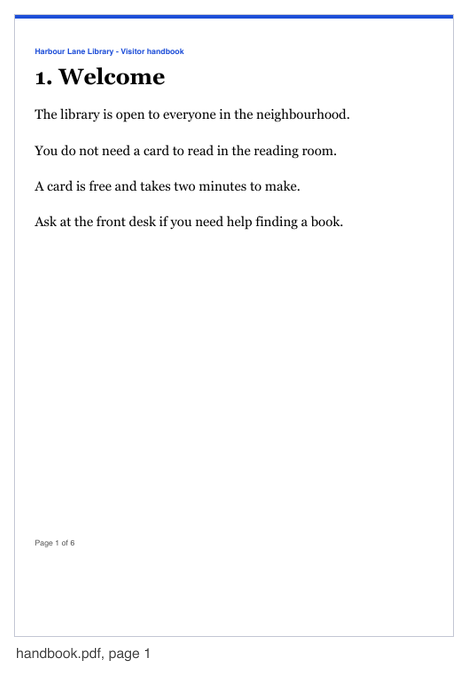
Output: page.png, 1240 x 1754 px, 56 KB (150 DPI)
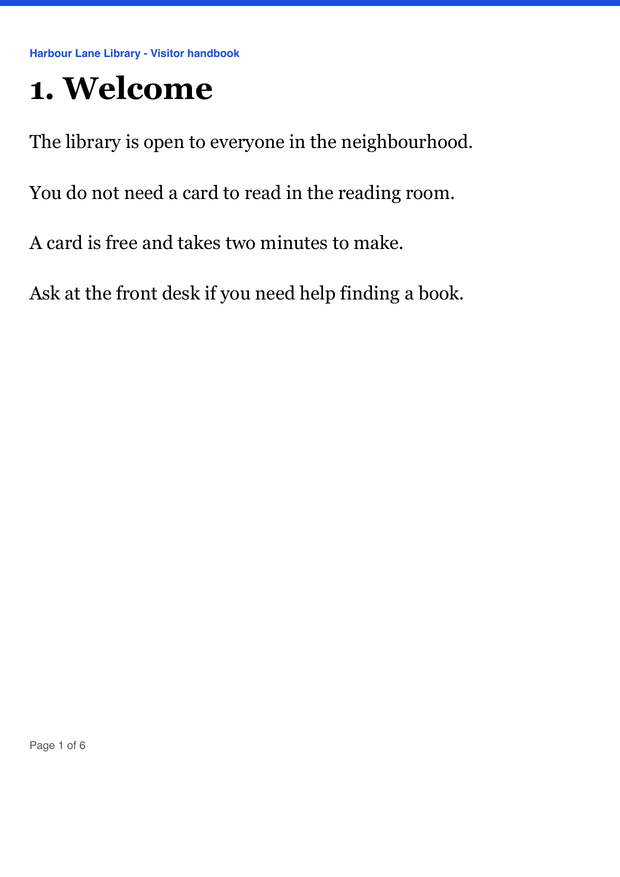
How to convert a PDF to PNG
Start with one PDF file. The tool works on our server, so the file is uploaded before the conversion runs. When the job ends, the result panel shows a preview if the output is one image, along with the page count, the pixel size of the first page, the credits used and the file size.
If the PDF has one page, you get page.png. If it has several pages, you get pdf-pages.zip with files named page-001.png, page-002.png and so on. The number in each name is the page number in the PDF.
- Result for one page: page.png
- Result for several pages: pdf-pages.zip
Convert all pages or only some pages
Leave the Pages box empty to convert all pages. To convert only some pages, type numbers and ranges, such as 1-3,5 or 2-z. The letter z means the last page, and rK means the K-th page from the end, so r1 is the last page.
Page numbers start at 1, and zero is not valid. If you enter a number past the last page, the job fails with an error that says the page is outside the document, and your credits are returned.
- Example: 1-3,5 converts pages 1, 2, 3 and 5.
- Example: r2 converts the second-to-last page.
Choose the resolution (DPI)
Resolution sets how many pixels each inch of the page gets. You can choose 72, 96, 150 (the default), 200 or 300 DPI. Higher values give sharper text and larger images.
To estimate the pixel size, multiply the page size in inches by the DPI. In our test, an A4 page measured 595 x 842 px at 72 DPI, 1240 x 1754 px at 150 DPI and 2479 x 3508 px at 300 DPI.
- A4 at 72 DPI: 595 x 842 px
- A4 at 150 DPI: 1240 x 1754 px
- A4 at 300 DPI: 2479 x 3508 px
PNG file size
PNG files can be large at high DPI because every pixel is stored. In our generated test, a one-page text PDF gave a PNG of 56 KB at 150 DPI and 127 KB at 300 DPI. The same page as JPG at 150 DPI was 80 KB.
Pages with photos or heavy graphics give much larger files. Results vary with the file, so check the file size in the result panel before you download.
- Page 1 at 150 DPI, PNG: 56 KB
- Page 1 at 300 DPI, PNG: 127 KB
PNG or JPG: which to pick
PNG is the default on this page. It is the same PDF to image tool as the PDF to JPG page, with PNG chosen first. It keeps every pixel as drawn, so it suits text, line art and screenshot-like pages. JPG is lossy and works well for pages with photos. You can switch to JPG in the Image format list, and the JPG quality slider goes from 1 to 100, with 85 as the default.
The file size can go either way. In our test, a text page was smaller as PNG than as JPG at 150 DPI, but the result depends on the file. If you want a JPG version, the PDF to JPG tool on this site does the same job.
- PNG: lossless, good for text and line art
- JPG: lossy, good for photos, quality 1 to 100
Limits: pages, size and very large pages
Each job has a page limit. Without an account, you can turn up to 10 pages per job into images. Signed in, the limit is 100 pages. If you ask for more pages than the limit, the job is refused with a too_many_pages error. It is never cut off silently, so type a page range to pick the pages you need.
Each page is limited to 25 megapixels and 16384 px on a side. A larger page is drawn at a lower DPI automatically, and the result panel tells you which pages were changed. In one job, all pages together are limited to 150 MP without an account and 1000 MP signed in. The images from one job together are limited to 100 MB. If you reach that limit, use JPG, a lower DPI or fewer pages.
- Pages per job: 10 without an account, 100 signed in
- Output total per job: 100 MB
Fonts and what the images look like
PDF pages are drawn by Poppler, an open-source PDF program that runs as a separate process on our server. Pages are drawn as the PDF describes them, on a white background. Fonts that are not embedded in the PDF are replaced with similar ones, so the text can look different from the original.
Chinese, Japanese or Korean text can look wrong in a PDF without embedded fonts, because the server has no CJK fonts for that case. We have not tested a CJK PDF, so we cannot say more about that case.
- Fonts not embedded in the PDF are replaced with similar fonts.
- Chinese, Japanese and Korean text may not render correctly without embedded fonts.
Encrypted and damaged files
Encrypted PDFs are refused. This includes files with a password and files with permission restrictions, whatever their strength. The tool does not accept a password and does not try to open or break the protection.
A damaged PDF is repaired automatically when possible. The result panel says so: "The file had minor damage that was repaired automatically." If the file cannot be repaired, it is refused. The setting "Repair a slightly damaged PDF automatically" is on by default. If you turn it off, a damaged file is refused.
- Encrypted PDFs: refused
- Damaged PDFs: repaired when possible, refused when not
Convert a PDF to PNG from code
The API takes one file per request. First send the raw PDF bytes with Content-Type application/pdf to https://api.aiipworld.com/v1/uploads. The answer contains an upload_id. Then send a JSON request to https://api.aiipworld.com/v1/pdf-jobs with op, params and files set to the upload_id, and poll GET /v1/jobs/:id until the job succeeds, fails or times out.
Use either an Authorization: Bearer header with your API key or an x-api-key header. The download_url in the finished job is a short-lived signed link. The page shows a ready cURL, Node and Python example below the tool, built from the settings you chose. For general API details, see /docs/.
- Upload endpoint: https://api.aiipworld.com/v1/uploads
- Job endpoint: https://api.aiipworld.com/v1/pdf-jobs
- Errors: 400 invalid_params, 413 file_too_large, 422 not_a_pdf, 404 upload_not_found, 402 insufficient_credits, 429 rate limited
- Failed job codes include encrypted_pdf, corrupt_pdf, too_many_pages, page_out_of_range and too_many_pixels
Privacy: what happens to your file
Your file is sent to our server, and nothing is processed in your browser. The uploaded file is used only to make the result. The working copy of the upload is deleted as soon as the job ends, whether it succeeds or fails.
In the free web tool, the result is deleted after 10 minutes. The result panel shows how long it stays available. No history is kept, and download links are short-lived. You must have the right to use the file you upload, as set out in our Acceptable Use Policy.
- Working copy of the upload: deleted when the job ends
- Result in the free web tool: deleted after 10 minutes
Questions
Can I convert a PDF to PNG for free?
Yes, you can use this PDF to PNG converter for free without an account. Anonymous use needs a human check, and you can run 20 PDF jobs per day per visitor.
How do I convert only one page of a PDF to PNG?
Type the page number in the Pages box, such as 4. You can also type a range like 2-5 or use z for the last page.
Is PNG better than JPG for a PDF page?
PNG keeps every pixel, which suits text, line art and screenshot-like pages. JPG is lossy and suits pages with photos, and the best choice depends on your file.
Which DPI should I choose?
Start with the default of 150 DPI, which is enough for most reading and sharing. Choose 300 DPI when you need more detail, but expect a larger file.
Why is my PNG file so large?
PNG stores every pixel, so high DPI and pages with photos or graphics make files bigger. Lower the DPI or switch to JPG if the size is a problem.
Can I convert a PDF with many pages?
Yes, up to 10 pages per job without an account and 100 signed in. If you ask for more pages than that, the job is refused, so type a page range to convert the pages in parts.
Will the text in the PNG still be selectable?
No. Text in the PDF becomes pixels, so it cannot be selected or searched in the PNG. To get the text, use the Image to Text tool on this site.
Can I convert a PDF that has a password?
No. Encrypted PDFs are refused, and the tool does not accept a password or try to open the file.
Do the PNG files have a transparent background?
Pages are drawn on white, as the PDF specifies. Do not expect a transparent background.
Can I convert a PDF to PNG in my own code?
Yes. Upload the file to the uploads endpoint, then start a job on the pdf-jobs endpoint and poll for the result. The page shows a ready cURL, Node and Python example, and /docs/ has general API details.
Need this in your app or in bulk?
This tool runs on the same platform as the API, so the same merge, split or rotate is two HTTP requests from your code: upload each PDF, then start the job. A free account includes 100 credits a month.