
Rotate Image Online
Rotate Image with this free online tool to turn a picture by a right angle or by any angle you choose. Use it as an image rotator for one picture at a time. Upload one picture, set the angle, and download the turned result. The tool keeps the whole picture in view, so nothing is cut off when you turn it at an odd angle.
- One picture per job. Each upload can be up to 5 MB without an account and up to 10 MB signed in.
- Pictures can be up to 16 MP (4096 x 4096) in size. Results over 40 MP are refused.
- Turning at an angle that is not a right angle adds empty corners. JPEG cannot keep them, so use PNG or WebP for those.
Drop an image here
PNG, JPG, WebP, AVIF, GIF, BMP or TIFF, up to 5 MB
From -360 to 360. A positive number turns the picture clockwise, a negative number turns it counterclockwise.
Same keeps the file type (a GIF stays a GIF; BMP and TIFF are saved as PNG, AVIF as WebP).
Complete the human check to enable the button.
Result
Your image will appear here.
The free web tool takes images up to 5 MB, 30 per day. Signed in, the limit is 10 MB. The image keeps its pixel size unless you choose Make smaller.
Retention: web-tool results are deleted after 10 minutes and no history is kept. API results are kept 1 day on the free plan and 7 days on Starter and Pro (30 days on Business and Scale).
No account needed
30 images per day for free, no watermark.
Only your edit is applied
The rest of the picture is left as it is. Camera and location tags (EXIF, GPS) are not written to the result.
Deleted automatically
Web tool results are removed after 10 minutes.
Privacy: what you submit is used only to make this file. The working copy is deleted when the job ends, the result after 10 minutes. See the privacy policy.
Do this from your code
The same edit as an API request: send the image bytes, then poll the job. It needs an API key; a free account can create one.
curl -X POST "https://api.aiipworld.com/v1/image-jobs?op=image_edit&action=rotate&angle=90" \
  -H "Authorization: Bearer $AIIPWORLD_API_KEY" \
  -H "Content-Type: image/png" \
  --data-binary @input.png

# returns {"job_id": "...", "status": "queued", "credits_reserved": 1}; then poll:
curl https://api.aiipworld.com/v1/jobs/JOB_ID -H "Authorization: Bearer $AIIPWORLD_API_KEY"
Batches
The web tool handles 1 image at a time. The API takes one request per image, so you can script as many as your plan allows.
Retention
Web-tool results are kept 10 minutes; free API results 1 day; Starter and Pro results 7 days; Business and Scale 30 days. The web tool allows 10 conversions per minute and 50 per day per visitor.
In one sentence
A free online tool that turns a picture clockwise or counterclockwise by 90, 180, 270 or any angle from -360 to 360 degrees and saves it as PNG, JPEG, WebP or GIF.
Key facts
- Input: one picture up to 5 MB in the free tool and 10 MB when signed in, and up to 16 MP (4096 x 4096); PNG, JPG, WebP, AVIF, GIF, BMP and TIFF are accepted, and animated GIF and WebP are turned frame by frame within the animation limits.
- Settings: the angle (a positive number turns clockwise), the color of the empty corners (transparent by default), save as the same type, PNG, JPEG, WebP or GIF, and quality for JPEG and WebP.
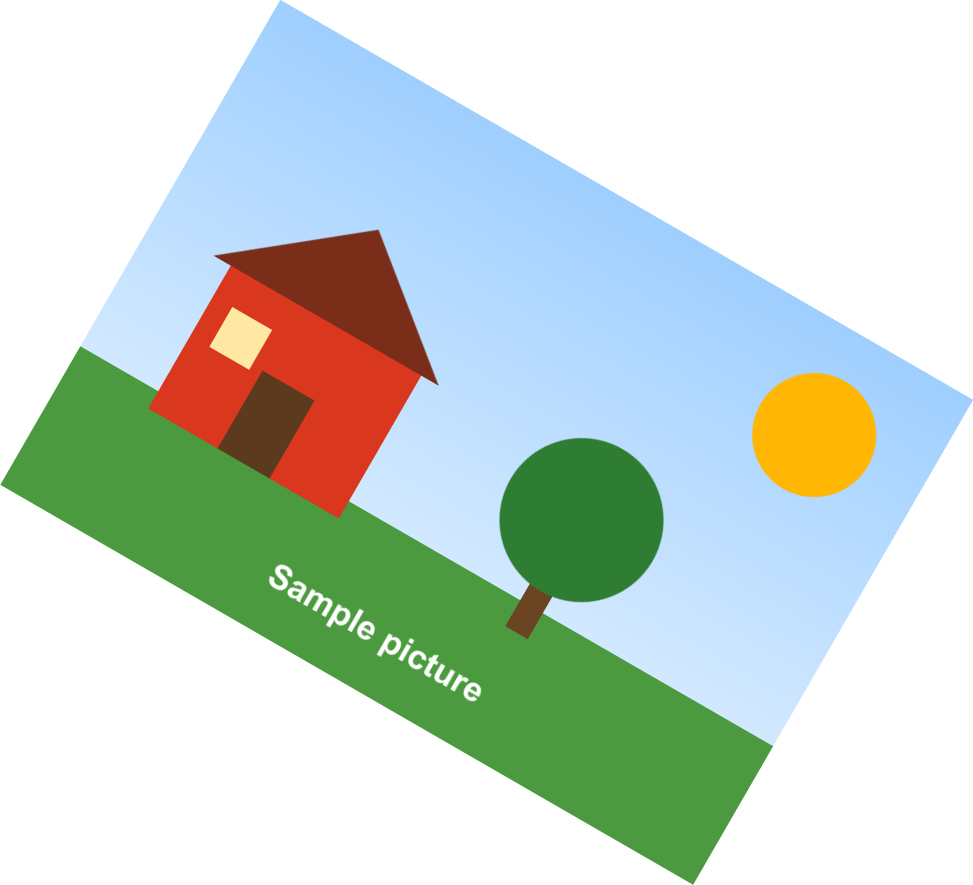
- A turn by an angle that is not 90, 180 or 270 makes the canvas bigger so that nothing is cut off; in our test an 800 x 560 px picture turned 30 degrees became 973 x 885 px, and a 90 degree turn gave 560 x 800 px.
- The upload is deleted when the job ends and the result after 10 minutes; signed-in users pay 1 credit per file plus 1 credit for each started 5 MB of result beyond the first 5 MB and, for an animation, 1 credit for each started 10 MP of frames beyond the first 10 MP.
- Free without an account: up to 10 conversions per minute and 50 per day per visitor, no watermark. Signed in, each render costs 1 credit (100 free credits every month).
- Files are deleted automatically: 10 minutes after conversion without an account, 1 day with a free account.
- Developers can run the same job with POST https://api.aiipworld.com/v1/image-jobs?op=image_edit (the image as the request body, settings in the query string) and an API key (see the API docs page).
How it works
- Upload one picture. Check the file type is PNG, JPG, WebP, AVIF, GIF, BMP or TIFF.
- Enter an angle in "Angle (degrees)", or use the "90° right", "90° left" or "180°" buttons.
- Choose "Empty corners" if the angle is not a right angle. Keep Transparent or pick a color.
- Choose "Save as" and, for JPEG or WebP, set the Quality slider.
- Click "Rotate image" and download the result from the result panel.
Example output
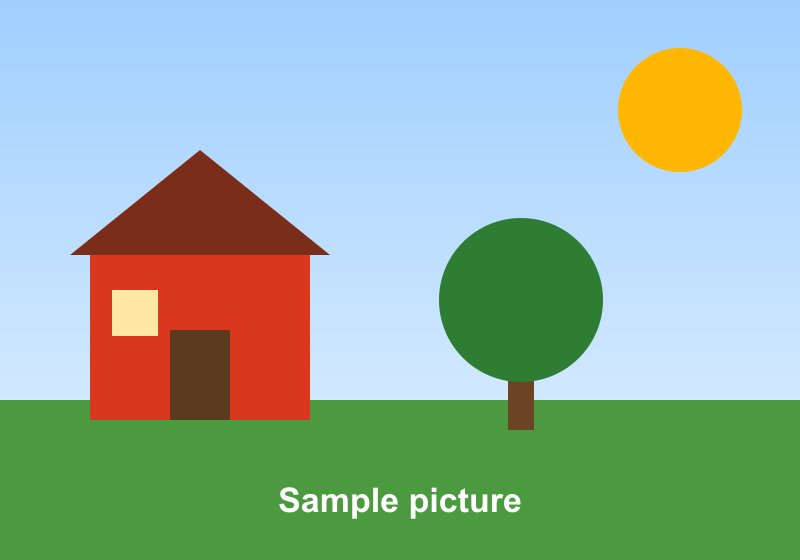
Original PNG, 800 x 560 px, 24 KB
Turned 30 degrees clockwise: PNG, 973 x 885 px, 63 KB
How to Rotate Image Files Online
You can rotate image online with nothing to install. Rotate image files in a few steps. Upload your picture, pick the angle, and click "Rotate image". The result panel shows the turned picture, the angle that was applied, and the new size.
The tool sends your file to our server, where the turn is made. Results vary with the picture, so check the output before you use it.
- Start with a copy of your original file.
- Check the new size before you download.
Turn 90, 180 or 270 Degrees
To rotate a picture by a right angle, use 90, 180 or 270 degrees. Right angles are exact. A 90 or 270 degree turn swaps width and height, and a 180 degree turn keeps the same size. The pixels are moved, and none are changed.
In our test, an 800 x 560 px picture turned 90 degrees clockwise became 560 x 800 px. At 180 degrees it stayed 800 x 560 px. We checked a pixel of the red house wall in each result, and it had moved to the expected place with exactly the same color. These measurements were made on generated test pictures, not real photos.
Rotate Image Files by Any Angle
You can rotate photo files by any angle from -360 to 360 degrees. The canvas grows so the whole picture fits. The new width is the width times the absolute cosine of the angle, plus the height times the absolute sine, rounded. The new height uses the sine and cosine the other way round.
In our test, an 800 x 560 px picture turned 30 degrees clockwise became 973 x 885 px. Turned 45 degrees with white corners, the same picture became 962 x 962 px. Turning a 4096 x 4096 px picture by 45 degrees gives about 33.6 megapixels, which is within the limit.
- Any angle that is not a multiple of 90 adds empty corners.
- The tool does not straighten a picture automatically.
Which Way Is Clockwise
To rotate picture files clockwise, use a positive number, which turns the picture clockwise. A negative number turns it counterclockwise. The "90° right" button turns clockwise, and the "90° left" button turns counterclockwise.
In our test, a 90 degree turn and a -90 degree turn both gave 560 x 800 px. The difference was the direction the picture turned. If your result faces the wrong way, change the sign of the angle and run the job again.
Corners That Turn Transparent or White
When a picture turns at an angle that is not 90, 180 or 270 degrees, the empty corners are transparent by default. You can pick a background color instead. The corners only appear at these angles, so right angles do not add any.
Transparent corners need a format that can hold them, such as PNG or WebP. GIF can only show corners as fully on or fully off, so the slanted edges can look jagged. With "Save as" set to JPEG, the corners are filled with the background color and the result panel says so.
Choose the File Format
"Save as" offers Same as the original, PNG, JPEG, WebP and GIF. Same as the original is the default and keeps the file type. BMP and TIFF are saved as PNG, and AVIF is saved as WebP.
Quality from 1 to 100 applies to JPEG and WebP, with a default of 90. In our test, a 21 KB JPEG turned 30 degrees became a 161 KB PNG when it was kept as the original type, because a JPEG cannot hold transparent corners.
- Use PNG when you need sharp edges and transparent corners.
- Use JPEG for photos with right-angle turns.
Rotating an Animated GIF or WebP
Animated GIF and WebP files keep their animation when the output is GIF or WebP and the animation checkbox is on. Every frame is turned, and the frame delays and loop count are kept. In our test, a 24 frame 320 x 240 px GIF turned 90 degrees became a 24 frame 240 x 320 px GIF.
With PNG or JPEG output, or with the checkbox off, only the first frame is used. Animation limits apply: up to 100 frames and 16 MP without an account, and 300 frames and 64 MP signed in. A turn that makes the canvas bigger counts with the bigger size.
Limits: Size and Pixels
Each picture can be up to 16 MP (4096 x 4096) in width times height, and the file can be up to 5 MB without an account or 10 MB signed in. The result can be up to 20 MB. A large photo saved as PNG can pass that limit, so use JPEG or WebP for big results.
Results are limited to 40 MP, and WebP output is limited to 16,383 px on a side. A result over these limits is refused before any work is done. It is never shrunk without telling you.
- Anonymous jobs are limited to 30 per day per visitor.
- Signed-in jobs take up to 60 seconds, and anonymous jobs take up to 30 seconds.
What to Check in the Result
The result panel shows the size of the new picture, the angle that was applied, and any notes. Check those before you download. If the panel says the file was saved as PNG or the corners were filled, the format was changed on purpose.
Look at the edges and the corners, since they are where a turn shows most. Compare the new size with the one shown before you upload.
- Download links are short-lived, so save the file soon after the job ends.
- Results vary with the picture.
Rotate an Image From Code
You can call the API with a POST request to https://api.aiipworld.com/v1/image-jobs with op set to image_edit and action set to rotate. Send the raw picture bytes as the body, not JSON or multipart. Set Content-Type to image/png, image/jpeg, image/webp, image/gif, image/avif, image/bmp or image/tiff, and put the settings in the query string.
Each action accepts only its own parameters, plus format, quality, background and animate. The rotate action needs an angle. A missing or out of range value returns 400 invalid_params. The API returns 202 with a job_id, and you poll GET /v1/jobs/:id for the result. The download_url is a short-lived signed link. Authorization uses Bearer with your API key, or x-api-key. The page shows a ready cURL, Node and Python example built from your settings. Errors include 400 unsupported_image, 413 file_too_large, 402 insufficient_credits and 429 rate limited. See /docs/ for the general API.
Privacy: What Happens to Your Picture
Use this tool only with pictures you have the right to use, as set out in the Acceptable Use Policy. The uploaded file is used only to make the result. The working copy is deleted as soon as the job ends, whether it succeeds or fails.
The result is deleted after 10 minutes in the free web tool, and no history is kept. Camera and location tags are not written to the result. Anonymous use needs a human check. Signed-in users skip the check and use credits, and failed or timed-out jobs are refunded.
Questions
Can I rotate an image for free?
Yes, you can rotate an image for free without an account. Anonymous jobs are limited to 30 per day per visitor and need a human check.
How do I rotate a picture 90 degrees?
Click the "90° right" button, or enter 90 in "Angle (degrees)", then click "Rotate image". The width and height swap for a 90 degree turn.
Which direction does a positive angle turn?
A positive angle turns the picture clockwise. A negative angle turns it counterclockwise.
Can I rotate a photo by a small angle, like 5 degrees?
Yes, any angle from -360 to 360 degrees is accepted. A small angle adds thin empty corners, which are transparent unless you pick a color.
Why did the picture get bigger after I rotated it?
The canvas grows so the whole picture fits at an angle that is not a right angle. In our test, an 800 x 560 px picture turned 30 degrees became 973 x 885 px.
Why are the corners transparent or white?
Those corners are the empty space left when a picture turns at an angle. They are transparent by default, and you can choose a color instead.
Does rotating reduce the quality?
Right-angle turns move pixels without changing them. JPEG and WebP are lossy, so the final encoding can change the picture, while PNG keeps every pixel.
Can I rotate a JPEG and keep it a JPEG?
Yes, choose JPEG in "Save as". Any empty corners are filled with the background color, and the result panel says so.
Is rotating the same as flipping?
No. Rotating turns the picture by an angle, while flipping makes a mirror image. Use the Flip Image tool to mirror a picture.
Can I rotate an image in my own code?
Yes, the API has a rotate action on the image_edit operation. Send the raw picture bytes with the right Content-Type, and poll the job for the result.
Need this in your app or in bulk?
This tool runs on the same platform as the API, so the same image is one HTTP request from your code. A free account includes 100 credits a month.