
Extract Images from PDF
Extract Images from PDF with this free online tool. It saves the pictures (bitmaps) that are embedded in your PDF as files in one ZIP. Vector drawings, charts, logos drawn with shapes, and text are not pictures, so they are not extracted. This is also not the same as turning pages into images.
- The tool saves embedded pictures only. Vector drawings and text cannot be extracted.
- Encrypted PDFs are refused. No password is accepted.
- If no pictures are found, the job still succeeds, the ZIP is empty and no credits are used.
Drop a file here or choose one. Up to 10 MB per file without an account.
Pictures smaller than this are skipped; leave empty to keep all pictures.
Only embedded pictures are extracted. Vector drawings, charts drawn with lines and text are not pictures.
Complete the human check to enable the button.
Result
Your ZIP will appear here.
Without an account: 20 jobs per day, up to 10 MB per PDF, 100 pages, 100 pictures and a ZIP of 40 MB. Signed in: up to 50 MB per PDF, 500 pages, 500 pictures and a ZIP of 100 MB.
Retention: web-tool results are deleted after 10 minutes and no history is kept. API results are kept 1 day on the free plan and 7 days on Starter and Pro (30 days on Business and Scale).
No account needed
20 PDF jobs per day per visitor.
Pictures are not re-compressed
A JPEG goes into the ZIP as it was in the PDF, byte for byte. Only pictures are extracted, not drawings or text.
Deleted automatically
Web tool results are removed after 10 minutes.
Privacy: what you submit is used only to make this file. The working copy is deleted when the job ends, the result after 10 minutes. See the privacy policy.
Do this from your code
The same job as API requests: upload each PDF, start the job with the upload ids, then poll it. It needs an API key; a free account can create one.
curl -X POST "https://api.aiipworld.com/v1/uploads" \
  -H "Authorization: Bearer $AIIPWORLD_API_KEY" \
  -H "Content-Type: application/pdf" \
  --data-binary @input.pdf   # returns {"upload_id": "UPLOAD_ID_1", ...}

curl -X POST "https://api.aiipworld.com/v1/pdf-jobs" \
  -H "Authorization: Bearer $AIIPWORLD_API_KEY" \
  -H "Content-Type: application/json" \
  -d '{"op":"pdf_extract_images","params":{},"files":["UPLOAD_ID_1"]}'
# returns {"job_id": "...", "status": "queued"}; then poll:
curl https://api.aiipworld.com/v1/jobs/JOB_ID -H "Authorization: Bearer $AIIPWORLD_API_KEY"
Batches
The web tool works on one PDF at a time. Use the API for many files; each job takes one PDF.
Retention
Web-tool results are kept 10 minutes; free API results 1 day; Starter and Pro results 7 days; Business and Scale 30 days.
In one sentence
A free online tool that saves the pictures embedded in a PDF as files in a ZIP, in the original format or as PNG, with a size filter and page choice; vector drawings and text are not pictures and are not extracted.
Key facts
- Input: one PDF up to 10 MB without an account (50 MB signed in), up to 100 pages (500 signed in); encrypted PDFs are refused.
- Settings: Original format (a JPEG is copied byte for byte) or all pictures as PNG, the smallest width and height in pixels, the pages and an option to also export transparency masks; the result is pdf-images.zip with files such as page-003-img-01.jpg.
- Only embedded pictures are extracted: vector drawings and text are not, a scanned page gives one big picture, a picture repeated on several pages is saved once, and JPEG 2000, JBIG2, CCITT and CMYK pictures keep formats that most browsers cannot open.
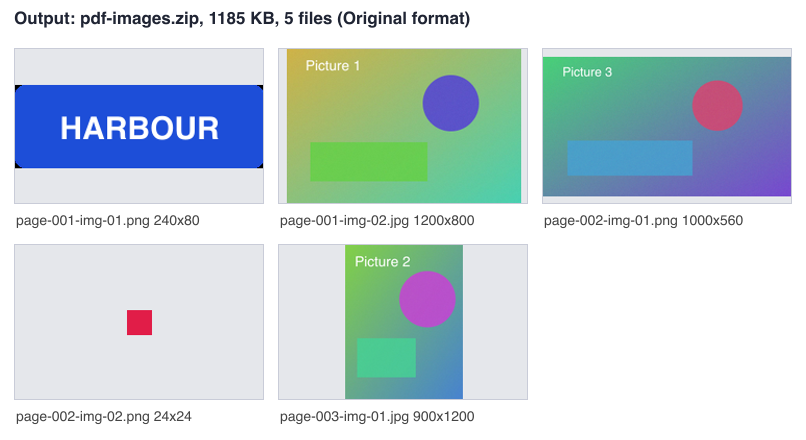
- In our test a generated 3 page PDF of 1.6 MB with 5 different pictures gave a ZIP of 1.2 MB with 5 files in Original format and 2.5 MB as PNG; a PDF with no pictures gave an empty ZIP and no credits were used; results vary with the file.
- API: POST the PDF to https://api.aiipworld.com/v1/uploads, then POST https://api.aiipworld.com/v1/pdf-jobs with op pdf_extract_images and the upload id, and poll GET /v1/jobs/:id.
- Free without an account: 20 PDF jobs per day per visitor, no watermark. Signed in, each job costs 1 credit, plus 1 credit for each started 20 MB of the ZIP beyond the first 20 MB, and a PDF with no pictures costs nothing (100 free credits every month).
- Files are deleted automatically: 10 minutes after conversion without an account, 1 day with a free account.
How it works
- Upload your PDF. Only PDF files are accepted, and the tool checks the file type from its content.
- Choose the format. Keep "Original format" to copy JPEG pictures byte for byte, or pick "All as PNG".
- Set a smallest width or height in pixels if you want to skip icons and bullets. Leave them empty to keep every picture.
- Enter pages such as 1-3,5, or leave the field empty for all pages.
- Run the job and download pdf-images.zip. The result panel shows how many pictures were saved.
Example output
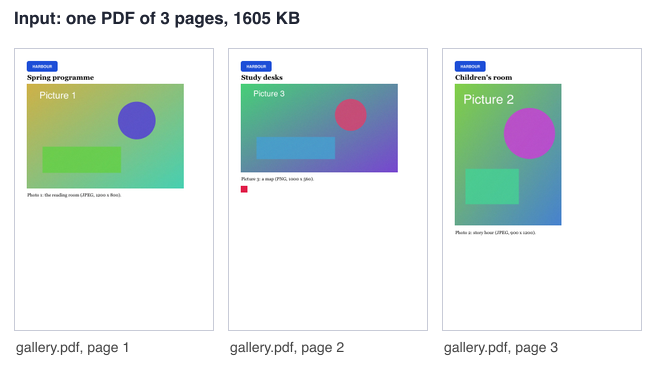
Input: one PDF of 3 pages, 1.6 MB
Output: pdf-images.zip, 1.2 MB, 5 files
How to extract images from PDF files
Use it when you want to extract photos from pdf files, or to extract pictures from pdf reports. Upload one PDF and the tool looks for every embedded picture on the pages you choose. Each picture is saved as a file and all files go into one ZIP named pdf-images.zip. Files are named by page and picture, so page-003-img-01.jpg is the first picture on page 3.
The result panel shows how many pictures were saved, the file types, and a table of the first 12 files with their name, width by height, and color. Results vary with the file, so check the table before you use the pictures. The tool can also repair a slightly damaged PDF automatically, and the panel tells you when it does. Wondering how to extract photos from pdf files? Upload the PDF, keep Original format and download the ZIP; the photos are the JPEG files in it.
Original format or all as PNG
Original format is the default. A JPEG picture is copied byte for byte, so it is the same file that was put in the PDF and keeps its quality. Most other pictures are saved as PNG.
All as PNG converts every picture to PNG, which opens in almost any viewer. It makes JPEG pictures several times bigger, so use it only when you need PNG files.
- Original format copies JPEG data without loss.
- All as PNG gives wider compatibility but larger files.
Files that most browsers cannot open
Some pictures use formats such as JPEG 2000, JBIG2, CCITT (fax), or CMYK. In Original format these keep their own formats and get the extensions .jp2, .jb2e or .jb2g, .ccitt, or .tif. Most browsers cannot open these files.
The result panel lists these files and suggests "All as PNG". Use that option if you need to view the pictures in a browser. Be aware that converting can take longer and produce larger files.
Skip small pictures and choose pages
Set "Smallest width" and "Smallest height" in pixels to skip small pictures. The default is 1, which keeps everything. In our test, a value of 100 for both skipped a 240 x 80 pixel logo and a 24 x 24 pixel icon and kept the three larger pictures. Results vary with the file.
Enter page numbers or ranges, such as 1-3,5, to limit the job; this is the way to extract pdf images from only some pages. A picture that appears on several pages is saved once, from the first page where it is found. The panel reports how many duplicates, transparency masks, and small pictures were skipped.
Only pictures are extracted: vector drawings and text are not
The tool extracts embedded bitmaps only. Charts, maps, and logos drawn with lines and shapes are vector content, so they are not in the ZIP. Text is not extracted either.
This is different from PDF to JPG and PDF to PNG, which draw whole pages as images. If you need the page itself, use one of those tools instead.
Scanned PDFs and pictures that repeat on every page
A scanned PDF usually has one large picture per page. The tool saves the scan of each page, so you get one image file for each scanned page. For text from scanned pages, try the Image to Text tool.
A logo or header that repeats on every page is saved once. Transparency masks are not exported unless you turn on "Also export transparency masks".
What if no pictures are found
Some PDFs have no embedded pictures on the chosen pages, or all pictures were removed by your size filter. The job then succeeds with an empty ZIP, and the result panel says "No pictures found". Check the pages and the size filter.
No credits are used in this case, because the reserved credit is refunded. A PDF that draws its images as vectors has nothing to extract.
Limits: size, pictures and credits
The free web tool allows 20 jobs per day per visitor. This count is shared with merge, split, rotate, delete pages, PDF to image and image to PDF. You can upload one PDF per job, up to 10 MB without an account or 50 MB when you are signed in. Without an account, PDFs can have up to 100 pages. Signed in, the limit is 500 pages.
Without an account, a job can save up to 100 pictures, and the ZIP can be at most 40 MB. Signed in, the limits are 500 pictures and 100 MB for the ZIP. A job over the limit stops with an error, so use the size filter, choose fewer pages, or use Original format. Converting to PNG is also limited by size: up to 24 MP of pictures without an account and 96 MP signed in.
Converting large, detailed pictures to PNG can be slow and can run into the time limit, which is 30 seconds without an account and 60 seconds when signed in. In our tests, a noisy 16-megapixel picture took more than a minute to convert, so use Original format for large pictures. Original format copies the data and is much quicker. Stopped jobs are refunded in full.
Signed-in jobs cost 1 credit, plus 1 for each started 20 MB of the ZIP beyond the first 20 MB. A job that finds no pictures costs 0 credits.
Extract images from PDF from code
Use the API to extract images from a PDF in your own program. First send the raw PDF bytes with a POST to https://api.aiipworld.com/v1/uploads, using Content-Type application/pdf. The answer contains an upload_id. Then send a POST to https://api.aiipworld.com/v1/pdf-jobs with JSON that sets op to pdf_extract_images, the params, and files set to the upload id.
Poll GET /v1/jobs/:id until the job succeeds, fails, or times out. The download_url is a short-lived signed link to the ZIP. Authorize with Authorization: Bearer <API key> or with x-api-key.
Possible errors include 400 invalid_params, 413 file_too_large, 422 not_a_pdf, 404 upload_not_found, 402 insufficient_credits, and 429 rate limited. A failed job can return encrypted_pdf, corrupt_pdf, or page_out_of_range. The page shows ready cURL, Node, and Python examples built from your settings. See /docs/ for the general API.
Privacy: what happens to your file
Your file is sent to our server, and nothing is processed in your browser. You must have the right to use what you upload, as set out in the Acceptable Use Policy. The uploaded file is used only to make the result.
The working copy of your upload is deleted as soon as the job ends, whether it succeeds or fails. In the free web tool the result is deleted after 10 minutes, and the result panel shows how long it stays. No history is kept, and download links are short-lived.
Questions
Can I extract images from a PDF for free?
Yes, the free web tool lets you extract images from a PDF without signing up, within 20 jobs per day per visitor. Without an account, each uploaded file has its own human check and counts toward 40 uploads per day per visitor.
Do the pictures keep their quality?
In Original format, a JPEG picture is copied byte for byte, so it keeps the same quality as in the PDF. Other pictures are saved as PNG, and All as PNG converts every picture, which makes JPEG pictures several times bigger.
Why are some files .jp2, .ccitt or .tif and do not open?
Those pictures use formats such as JPEG 2000, JBIG2, or CCITT that most browsers cannot display. The tool keeps their original format. Choose "All as PNG" if you need files you can open in a browser.
Why did the tool find fewer pictures than I see on the page?
Vector drawings, text, and transparency masks are not counted as pictures. Your size filter or page range may also skip some pictures, and a repeated logo is saved only once. Check the panel's count of skipped duplicates and small pictures.
Is this a PDF image extractor?
Yes, it works as a PDF image extractor for the pictures embedded in the file. It saves them in one ZIP. It does not turn whole pages into images; use PDF to PNG for that.
Can I extract the charts and drawings?
No. Charts and drawings made of lines and shapes are vector content, not embedded pictures, so they are not extracted. Use PDF to PNG if you need the whole page as an image.
What do I get from a scanned PDF?
You get the scan of each page as a separate image file, usually one per page. Our tests on a generated scanned PDF returned one PNG file per page. Use Image to Text if you need the text from the scan.
How do I skip icons and logos?
Set "Smallest width" and "Smallest height" in pixels. Smaller pictures are skipped, which removes many icons and bullets. Results vary with the file, so check the result table.
What is the difference from PDF to JPG?
Extract Images from PDF saves the pictures that are already embedded in the PDF. PDF to JPG draws each whole page as an image, including text and drawings.
Can I extract images from a password-protected PDF?
No. Encrypted PDFs are refused, whether they are password protected or have permission restrictions. No password is accepted, and no attempt is made to open or break the protection.
Can I extract images from a PDF in my own code?
Yes. Use the API with the pdf_extract_images operation. Upload the file to /v1/uploads, start a job at /v1/pdf-jobs, and poll the job until it finishes. The page shows ready cURL, Node, and Python examples.
Need this in your app or in bulk?
This tool runs on the same platform as the API, so the same merge, split or rotate is two HTTP requests from your code: upload each PDF, then start the job. A free account includes 100 credits a month.