
Image to Text
Image to text means turning the letters in a picture into text you can copy, edit or download. This free tool reads screenshots, scans and clear pictures of printed text with OCR, which is text recognition. You can start without an account, and you can upload one file at a time.
- Results depend on the file. Check names, numbers and line order against the picture.
- Tables and receipts do not keep their rows and columns in the output.
- Handwriting and vertical Japanese are not supported.
Drop a file here or choose one. Up to 5 MB per file without an account.
Receipts and photographed pages usually read better as one block. Columns and tables need the default.
Complete the human check to enable the button.
Result
Your text will appear here.
Without an account: 10 reads per day, up to 5 MB per file and 2 PDF pages. Signed in: up to 10 MB and 5 PDF pages.
Retention: web-tool results are deleted after 10 minutes and no history is kept. API results are kept 1 day on the free plan and 7 days on Starter and Pro (30 days on Business and Scale).
No account needed
10 text reads per day per visitor, up to 2 PDF pages each.
Open-source OCR
Text is read on our server by Tesseract. Clear screenshots and scans work best; handwriting and tilted photos do not.
Deleted automatically
Web tool results are removed after 10 minutes.
Privacy: what you submit is used only to make this file. The working copy is deleted when the job ends, the result after 10 minutes. See the privacy policy.
Do this from your code
The same read as an API request: send the file bytes, then poll the job. It needs an API key; a free account can create one.
curl -X POST "https://api.aiipworld.com/v1/image-jobs?op=image_to_text&lang=eng&psm=3&format=txt&timeout_sec=60" \
  -H "Authorization: Bearer $AIIPWORLD_API_KEY" \
  -H "Content-Type: image/png" \
  --data-binary @scan.png

# returns {"job_id": "...", "status": "queued", "credits_reserved": 1}; then poll:
curl https://api.aiipworld.com/v1/jobs/JOB_ID -H "Authorization: Bearer $AIIPWORLD_API_KEY"
Batches
The web tool reads one file at a time. Use the API for many files; each request takes one file.
Retention
Web-tool results are kept 10 minutes; free API results 1 day; Starter and Pro results 7 days; Business and Scale 30 days.
In one sentence
A free online tool that reads the text in a picture or in the first pages of a PDF with the open-source OCR engine Tesseract and returns it as plain text, TSV or hOCR.
Key facts
- Input: PNG, JPEG, WebP, TIFF (first page) or PDF (the first 2 pages without an account, 5 signed in), up to 5 MB in the free tool and 10 MB when signed in, pictures up to 16 MP (4096 x 4096); the type is read from the file content. GIF, BMP, AVIF, HEIC and SVG are not accepted.
- Languages: English, Spanish and Japanese (horizontal text), up to three together; no other language is installed.
- Output: plain text (.txt), TSV with the position and confidence of each word, or hOCR markup saved as text. There is no searchable-PDF output, and a table loses its rows and columns.
- In our test of 20 generated pictures, clean screenshots had 0.7% character errors and simulated scans 0.0% with the default settings; a table and a receipt averaged 35.0%, and two simulated phone photos 44.8% (5.3% with the One block of text setting). Handwriting and real phone photos were not tested, and results vary.
- The reader's own score (mean confidence, 0 to 100) shows how sure the engine was of each letter, not whether lines are missing or in the wrong order.
- API: POST https://api.aiipworld.com/v1/image-jobs?op=image_to_text with the raw file bytes and an API key, then poll GET /v1/jobs/:id; settings lang, psm, format, max_pages and deskew go in the query string.
- Free without an account: 10 reads per day per visitor and up to 2 PDF pages each, no watermark. Signed in, each page read costs 1 credit and a job that finds no text costs nothing (100 free credits every month).
- Files are deleted automatically: 10 minutes after conversion without an account, 1 day with a free account.
How it works
- Upload a PNG, JPEG, WebP, TIFF or PDF file.
- Tick the language or languages in your picture: English, Spanish or Japanese, up to three.
- Choose "What the picture holds": Document or screenshot, One block of text, or Scattered text.
- Click "Read the text" and wait for the text to appear in the result box.
- Copy the text, or download it as .txt, .tsv or .hocr.
Example output
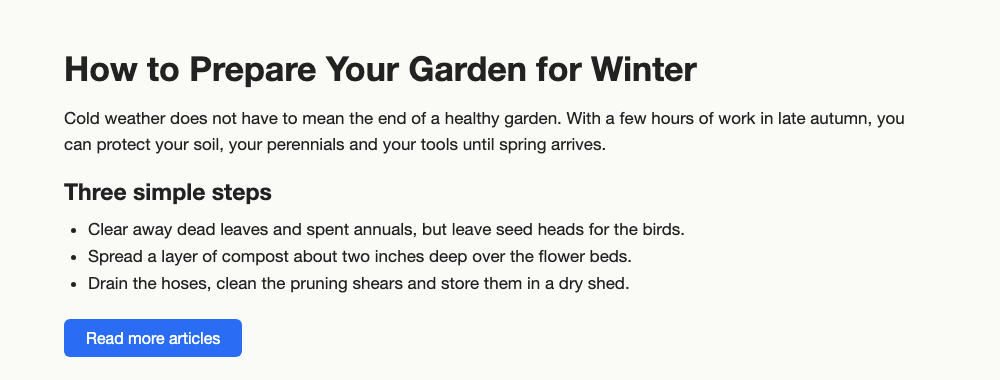
Test picture (generated), top part
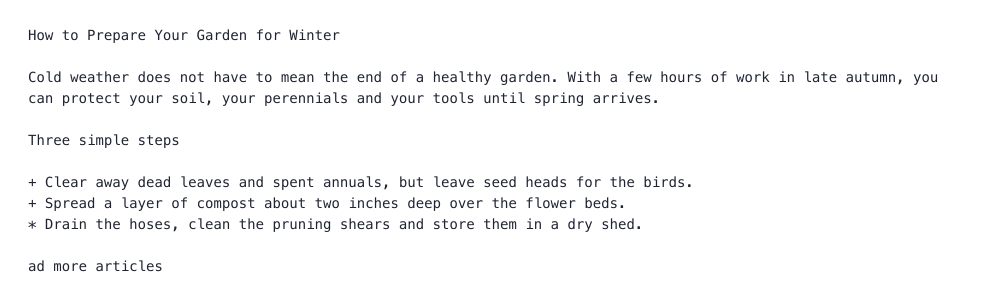
Text read, default settings, 92 words
How to turn an image into text
Start by uploading your file, then pick the language and the layout that match the picture. The tool reads the picture on our server and shows the text in a box in the result panel. You can copy the text straight away or download it as a text file. To convert image to text this way, the letters should be sharp, dark on a plain background, and not too small. The picture to text workflow works best with clear, printed letters.
If the first result looks wrong, change the layout setting and run the job again. Compare the output with the original before you use it, because the engine can misread a letter or drop a line. Each job handles one file, so repeat the steps for each picture.
What this image to text tool does (and what it is not)
This tool takes one file at a time, either a picture or a PDF, and returns the words it finds as plain text, TSV or hOCR. It is text recognition only. It gives you the letters it reads, but it does not keep the layout of the page, and it does not keep rows and columns.
Photo to text results depend on how the picture was taken. Treat the output as a draft to check, not as a finished copy. The limits that apply to your use are in the tool's notes and below.
Which pictures read well: screenshots, scans, PDFs
Clean screenshots, scans and clear pictures of printed text read well. In our tests, clean screenshots had an error rate of 0.7%, and simulated scans at 150-200 dpi, tilted slightly and with noise, had 0.0%. These are measurements on generated test files, not on real documents, so results vary.
- Clean screenshots: 0.7% errors
- Simulated scans at 150-200 dpi: 0.0% errors
- A scan at 100 dpi: 1.0% errors
- Spanish text with accents and ñ: 0.0% errors
Which pictures do not: handwriting, photos, tables and receipts
Handwriting and artistic fonts are not something this engine is built for, and we did not test handwriting, so expect poor results. Vertical Japanese is not supported. Photos are harder. Our simulated phone photos of a page drawn with perspective had 44.8% errors on the default setting and 5.3% with One block of text. We did not test real phone photos, so we cannot say how they will do.
Tables and receipts need care. On our test table, the header row was lost and rows came out in the wrong order, with 35.0% errors on average over the table and receipt tests. A receipt with One block of text read at 0.7%, but the output is still a stream of text.
- Handwriting: not tested, expect poor results
- Vertical Japanese: not supported
- Simulated phone photos: 44.8% errors on default, 5.3% with One block of text
Measured accuracy on our test pictures
We measured accuracy on 20 pictures that we generated for this project. They include web and app screenshots, simulated scans, tilted pages, columns, a table, a receipt, Spanish and Japanese text, and two simulated phone photos. Accuracy is the share of characters that differ from the known true text, with default settings. Your own files may give different results.
- A dark terminal screenshot was inverted automatically and read with 0% errors.
- A screenshot only 500 px wide had 6.9% errors, and low-resolution pictures averaged 3.9%.
- A page turned 90 degrees read with 0.0% errors.
- A page tilted 7 degrees returned nothing at first, then read with 0.0% after the automatic retry.
- Two and three column pages read with 0.0% errors and the correct order on the default setting.
- Japanese horizontal text had 2.5% errors, mostly in individual kanji.
What the reader's own score means
The reader's own score is the mean confidence from 0 to 100. It shows how sure the engine was of each letter. It is not a grade of the whole result, and it does not show missing lines or wrong order. In one of our tests, a table scored 96 and still lost rows and mixed their order.
Our demo is a 1000 x 640 px article screenshot with the default settings. It returned 92 words with a score of 94.8. The text was right except that two bullet marks read as + and *, and the white-on-blue button label "Read more articles" came out as "ad more articles". Check labels on colored buttons before you use them.
Image to text languages: English, Spanish and Japanese
The tool has English, Spanish and Japanese (horizontal text) installed. You can tick up to three languages together, for example English and Spanish for a bilingual page. Other languages are not supported, and they come out as wrong letters. Vertical Japanese is not supported at all.
Spanish with accents, ñ and ¿ read with 0.0% errors in our tests. Japanese horizontal text had 2.5% errors, with individual kanji wrong, so check any Japanese result closely.
Pick the right setting: document, one block, scattered text
The default, "Document or screenshot", suits most pages, including pages with columns. Use "One block of text" for a receipt or a photographed page that is one block of text. Use "Scattered text" for labels in a diagram, where words sit apart from each other.
The setting makes a large difference. On our two-column tests the default kept the reading order, but One block of text put the order out, with 66.6% errors. On simulated phone photos, One block of text cut errors from 44.8% to 5.3%.
- Document or screenshot (default): pages, screenshots and columns
- One block of text: receipts and photographed pages
- Scattered text: labels in a diagram
Tilted, dark or small pictures: what the tool fixes on its own
The tool handles several common problems automatically. It turns a picture upright using its EXIF orientation and flattens transparency to white. A picture with a dark background and light text is inverted automatically. A small picture, with its long side under 1,600 px and low confidence, is enlarged and read again, and the better result is kept. Pictures over 10 megapixels are scaled down.
If the first read finds no text at all, the engine tries once more with straightening on. You can also tick "Straighten tilted text first (up to 15 degrees)" yourself. Automatic fixes help, but they do not guarantee a good result for every file.
Read a scanned PDF to text (first pages only)
You can read a scanned PDF. Without an account the tool reads the first 2 pages, and signed-in users can read up to 5 pages. Each page is turned into a picture and read as a picture, so any text layer already in the PDF is not used. The page count you choose sets how many pages are read.
In the result, pages are separated by a line holding only a form-feed character. If the PDF has more pages than were read, the result panel says so. Signed-in users pay 1 credit for each page read.
Text, TSV or hOCR output
Plain text is saved as .txt in UTF-8. TSV gives each word with its position and confidence, which helps if you want to check words one by one. hOCR gives position markup and is delivered as plain text. Choose the format before you run the job.
The result panel shows the text in a box, with a Copy button and a Download button. The download is named text.txt, or .tsv or .hocr for those formats. If you want a plain image to txt file, choose the .txt format. The tool does not make a searchable PDF, so the output is text, TSV or hOCR only.
If no text is found
Sometimes the picture holds no text the engine can read. The job still succeeds, with an empty result. The panel then says "No text was found", and no credits are charged.
Try the "One block of text" setting, tick "Straighten tilted text first", or use a larger, sharper picture with dark text on a plain background. Failed and timed-out jobs are refunded in full, so a job that does not finish costs you nothing.
Read text from an image in code
You can use the API to extract text from image files in your own code. Send the raw file bytes in the body of a POST request to https://api.aiipworld.com/v1/image-jobs?op=image_to_text. The Content-Type must be image/png, image/jpeg, image/webp, image/tiff or application/pdf. Send your key as Authorization: Bearer <API key> or as x-api-key.
Settings go in the query string: lang, psm, format, dpi, max_pages, deskew, auto_rotate, invert, upscale and timeout_sec. Unknown names are rejected. The response is 202 with a job_id. Poll GET /v1/jobs/:id until the job succeeds, fails or times out, then download the text from the short-lived download_url. The page shows a ready cURL, Node and Python example built from the settings you chose. For the general API, see /docs/.
Possible errors are 400 invalid_params, 413 file_too_large, 422 not_a_pdf, 402 insufficient_credits and 429 rate limited. A failed job reports an error_code.
Privacy: what happens to your picture
Your file is sent to our server, and nothing is processed in your browser. The file is used only to make your result. The working copy of your upload is deleted as soon as the job ends, whether it succeeds or fails.
In the free web tool, the result is deleted after 10 minutes, and no history is kept. Download links are short-lived. Anonymous use needs a human check by Cloudflare Turnstile. You must have the right to use what you upload, as set out in the Acceptable Use Policy.
Questions
Can I turn an image into text for free?
Yes. The free web tool gives 10 reads per day per visitor, and signed-in users use credits.
Can it read a photo taken with my phone?
Sometimes, and results vary. Our simulated phone photos had 5.3% errors with One block of text, but real phone photos were not tested.
Can it read handwriting?
Not well. We did not test handwriting, and the engine is not built for handwriting or artistic fonts, so expect poor results.
Which languages does it read?
English, Spanish and Japanese (horizontal text) only. You can tick up to three together.
Why is my text in the wrong order, or why are lines missing?
The engine's confidence does not show order or missing lines. Use the default setting for columns, and try One block of text for a receipt or a photographed page.
Can it read a table or a receipt?
Not as a table. Table output loses rows and column structure. A receipt read at 0.7% errors with One block of text, but the output is a stream of text.
Does it work for jpg to text or pic to text with any file type?
No. It accepts PNG, JPEG, WebP, TIFF (first page only) and PDF. For jpg to text, upload the .jpg file itself. GIF, BMP, AVIF, HEIC and SVG are not accepted.
How accurate is it?
On our 20 generated test pictures, clean screenshots had 0.7% errors and simulated scans had 0.0%. Real documents may give different results, so check the text.
What does the reader's own score mean?
It is the mean confidence from 0 to 100, showing how sure the engine was of each letter. It does not guarantee that lines and order are right.
Can I read a scanned PDF?
Yes. Without an account the tool reads the first 2 pages, and signed-in users can read up to 5 pages.
Can it make a searchable PDF?
No. The result is text, TSV or hOCR only, with no text layer under a scan.
Is anything sent to a third party or stored?
Your file goes to our server and is used only to make the result. The working copy is deleted when the job ends, and the result is deleted after 10 minutes in the free web tool. Anonymous use also includes a Cloudflare Turnstile human check.
Why was no text found, and am I charged?
The picture may hold no text the engine can read. The job succeeds with an empty result, and no credits are charged.
Can I extract text from an image in my own code?
Yes. Send the raw file bytes to the image-jobs endpoint with your API key, then poll the job until it finishes.
Need this in your app or in bulk?
This tool runs on the same platform as the API, so reading the text of an image or a PDF is one HTTP request from your code. A free account includes 100 credits a month.