
Invert Image Colors
Use this free online tool to invert image colors, one picture at a time. Each color becomes its opposite, so white turns black and a red box turns cyan. You can use it for a photo color inverter job, a negative image effect, or to check how a picture looks with flipped colors.
- Each upload is one picture. Animated GIF and WebP files follow the animation limits shown on this page.
- Inverting changes colors only. It does not correct exposure, white balance or film color.
- Results vary with the file. Save as PNG if you need the exact pixels back.
Drop an image here
PNG, JPG, WebP, AVIF, GIF, BMP or TIFF, up to 5 MB
Same keeps the file type (a GIF stays a GIF; BMP and TIFF are saved as PNG, AVIF as WebP).
Used for JPEG and WebP files.
Complete the human check to enable the button.
Result
Your PNG will appear here.
The free web tool takes images up to 5 MB, 30 per day. Signed in, the limit is 10 MB. The image keeps its pixel size unless you choose Make smaller.
Retention: web-tool results are deleted after 10 minutes and no history is kept. API results are kept 1 day on the free plan and 7 days on Starter and Pro (30 days on Business and Scale).
No account needed
30 images per day for free, no watermark.
Original size by default
The image is re-encoded at its full pixel size unless you choose Make smaller. Camera and location tags are not copied into the result.
Deleted automatically
Web tool results are removed after 10 minutes.
Privacy: what you submit is used only to make this file. The working copy is deleted when the job ends, the result after 10 minutes. See the privacy policy.
Do this from your code
The same request, built from the input and options above. Create an account to get an API key.
curl -X POST https://api.aiipworld.com/v1/render \
  -H "Authorization: Bearer $AIIPWORLD_API_KEY" \
  -H "Content-Type: application/json" \
  -d '{"html":"","output":"pdf","options":{}}'

# returns {"job_id": "...", "status": "queued"}; then poll:
curl https://api.aiipworld.com/v1/jobs/JOB_ID -H "Authorization: Bearer $AIIPWORLD_API_KEY"
Batches
The web tool handles 1 image at a time. The API takes one request per image, so you can script as many as your plan allows.
Retention
Web-tool results are kept 10 minutes; free API results 1 day; Starter and Pro results 7 days; Business and Scale 30 days. The web tool allows 10 conversions per minute and 50 per day per visitor.
In one sentence
A free online tool that inverts the colors of a PNG, JPG, WebP, AVIF, GIF, BMP or TIFF image, so each color channel becomes 255 minus its value, without resizing the picture.
Key facts
- Input: one picture up to 5 MB in the free tool and 10 MB when signed in, and up to 16 MP (4096 x 4096); animated GIF and WebP are inverted frame by frame within the animation limits.
- Settings: save as the same type, PNG, JPEG, WebP or GIF, quality for JPEG and WebP, and whether transparent areas stay transparent (they do by default) or are filled with a background color.
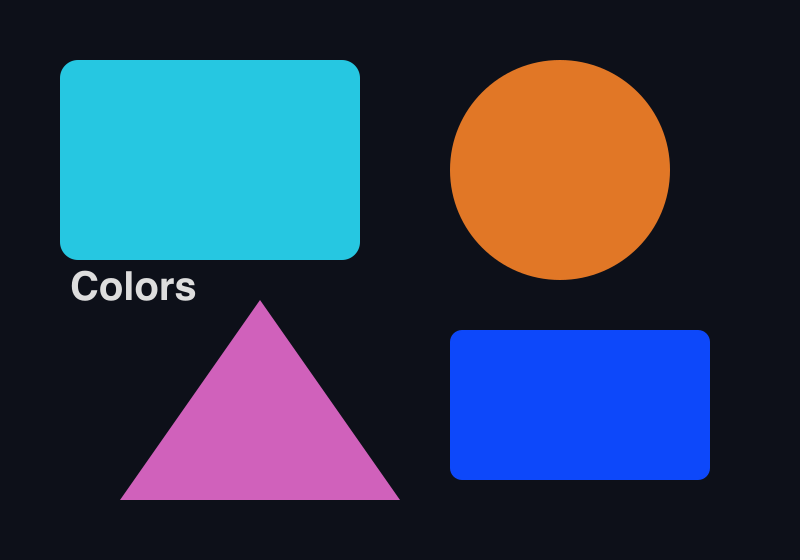
- In our test a transparent corner of a PNG stayed fully transparent and an opaque red of 217, 56, 30 became 38, 199, 225; inverting a PNG twice gave back the same pixels, which JPEG output does not.
- The upload is deleted when the job ends and the result after 10 minutes; signed-in users pay 1 credit per file plus 1 credit for each started 5 MB of result beyond the first 5 MB and, for an animation, 1 credit for each started 10 MP of frames beyond the first 10 MP.
- Free without an account: up to 10 conversions per minute and 50 per day per visitor, no watermark. Signed in, each render costs 1 credit (100 free credits every month).
- Files are deleted automatically: 10 minutes after conversion without an account, 1 day with a free account.
- Developers can run the same render with POST https://api.aiipworld.com/v1/render and an API key (see the API docs page).
How it works
- Upload one picture. PNG, JPG, WebP, AVIF, GIF, BMP and TIFF files are accepted.
- Choose "Save as". Keep "Same as the original" or pick PNG, JPEG, WebP or GIF.
- Adjust the Quality slider if you save as JPEG or WebP. The default is 80.
- Decide how to handle transparent areas, then click "Invert colors".
- Check the converted picture in the result panel, then download it.
Example output
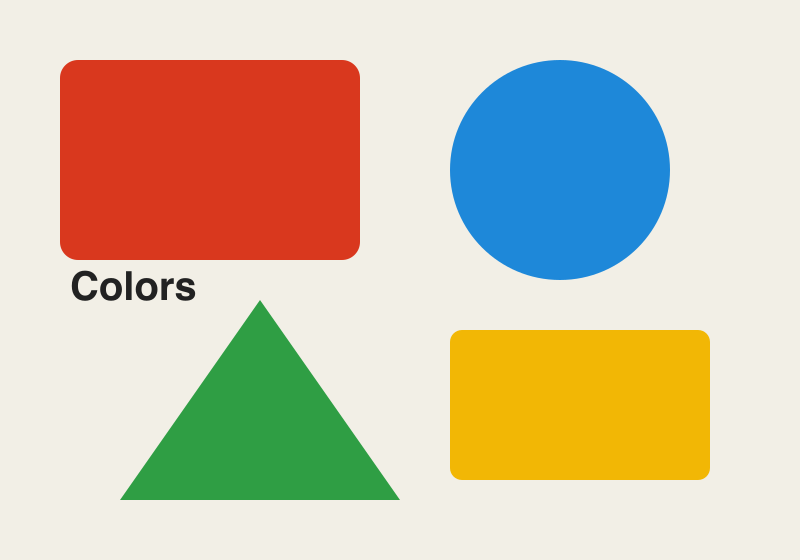
Original PNG, 800 x 560 px, 21 KB
Inverted PNG, 800 x 560 px, 21 KB
How to invert image colors step by step
The tool takes one picture at a time. Your browser sends it to our server, and the server does the conversion. To invert photo colors, start with the file you want to flip, then follow the steps above. The default settings keep the original format and transparency, so you can often click the button without changing anything else.
After the job ends, the result panel shows the converted picture, its size in pixels, what was converted and the credits used. Save the file from that panel if you are happy with it.
What inverting does to the colors
Inverting replaces each color channel (red, green and blue) with 255 minus its value, one pixel at a time. White becomes black, black becomes white, and a color becomes its opposite. The picture is not resized, and nothing else in it is changed.
This is a plain mathematical flip, not a correction. A scan of a color film negative may need more editing after inversion.
Transparent areas
By default, transparent areas stay transparent and only the colors are inverted. In our test with a generated PNG, a fully transparent corner stayed fully transparent after inverting. An opaque red box with the value #d9381e (217, 56, 30) became #26c7e1 (38, 199, 225).
If you turn off "Keep transparent areas transparent", a background color picker appears. Transparent areas are then filled with that color, which is white unless you change it, and the fill is not inverted. JPEG output has no transparency, so the same fill applies there.
Choose the file format
"Same as the original" is the default. A GIF stays a GIF, while BMP and TIFF files are saved as PNG and AVIF files are saved as WebP. You can also pick PNG, JPEG, WebP or GIF yourself.
- PNG keeps every pixel exactly and supports transparency.
- JPEG is smaller for photos but is lossy, so colors can shift slightly.
- WebP and GIF are useful when you want a specific output type.
Quality and file size
The Quality slider runs from 1 to 100 and defaults to 80. It applies to JPEG and WebP output only. Lower values usually give smaller files and more visible artifacts, while higher values keep more detail.
File size depends on the picture. A large photo saved as PNG can become very big, so switch to JPEG or WebP if the result is too large. Results vary with the file.
Inverting an animated GIF or WebP
Animated GIF and WebP files are inverted frame by frame. The frame delays and loop count stay the same, and a checkbox keeps the animation on by default. If you turn the animation off, or save as PNG or JPEG, only the first frame is used.
Animations have their own limits. Without an account, the web tool allows up to 100 frames and 16 MP in all (width x height x frames). Signed-in users get 300 frames and 64 MP.
Limits: size and pixels
Without an account, each image can be up to 5 MB. Signed-in users can upload up to 10 MB. Each picture may have up to 16 MP (4096 x 4096).
Visitors without an account get 30 jobs per day for image tools. The result can be up to 20 MB, and a large photo saved as PNG can pass that limit, so use JPEG or WebP in that case. Sizes use KB = 1024 bytes and MB = 1024 x 1024 bytes, as the result panel shows them.
What to check in the result
Open the converted picture at full size and compare it with the original. Check that the colors are flipped the way you expect, and that transparent areas look right on your background. If a photo looks odd, the file may need editing after inversion.
Inverting twice does not always return the original. A PNG inverted twice gave exactly the same pixels in our test. With JPEG output, about 13 of every 100 color values differed after two saves at quality 90. Measurements were made on generated test files, not real documents or photos.
Invert image colors from code
The API takes the raw bytes of one image as the request body, not JSON or multipart form data. Send a POST to https://api.aiipworld.com/v1/image-jobs?op=<op> with the settings in the query string. Set Content-Type to image/png, image/jpeg, image/webp, image/gif, image/avif, image/bmp or image/tiff, to match the file. Authenticate with Authorization: Bearer <API key> or the x-api-key header.
The response is 202 with a job_id. Poll GET /v1/jobs/:id until the job succeeds, fails or times out, then use the download_url, which is a short-lived signed link. Unknown parameter names are rejected. Errors include 400 invalid_params, 413 file_too_large, 422 unsupported_image and 402 insufficient_credits. Under the tool, the page shows a ready cURL, Node and Python example built from the settings you chose. See /docs/ for the general API.
Privacy: what happens to your picture
Your file is sent to our server, and nothing is processed in the browser. We use the uploaded file only to make the result. The working copy is deleted as soon as the job ends, whether it succeeds or fails.
The result is deleted after 10 minutes in the free web tool, and no history is kept. Download links are short-lived, so save the file when it is ready. Camera and location tags (EXIF and GPS) are not copied into the result. You must have the right to use what you upload under our Acceptable Use Policy.
Questions
Can I invert image colors for free?
Yes, the free web tool lets you invert image colors without signing up. Anonymous use has a daily limit of 30 jobs per visitor and a human check through Cloudflare Turnstile.
What does an inverted image look like?
Each color turns into its opposite, so white becomes black and a red area becomes cyan. Photos and illustrations look like a color negative.
Does inverting change the size of the picture?
No. The picture keeps its pixel dimensions, and only the color values change.
What happens to a transparent PNG?
By default, transparent areas stay transparent and only the colors are inverted. You can turn off that option to fill transparent areas with a background color.
Can I get the original back by inverting again?
For PNG output, inverting twice gave exactly the same pixels as the original in our test. With JPEG output, the second inversion did not return the original, so save as PNG if you need an exact match.
Can I invert a photo and save it as JPEG?
Yes, choose JPEG under "Save as" and set the Quality slider. JPEG is lossy, so the result will not be pixel-identical to the original.
Can I invert an animated GIF?
Yes. Animated GIF and WebP files are inverted frame by frame, with frame delays and loop count kept. Animation limits apply.
Is this the same as a film negative?
Not exactly. Inverting flips the colors of a picture, but a scan of a color film negative may need more editing to look right.
Which file types can I upload?
You can upload PNG, JPG, WebP, AVIF, GIF, BMP and TIFF. SVG, HEIC and camera RAW files are not accepted.
Can I invert image colors in my own code?
Yes. Send the raw image bytes to the image-jobs endpoint with the matching Content-Type, then poll the job and download the result. See /docs/ for details.
Need this in your app or in bulk?
This tool runs on the same platform as the API, so the same image is one HTTP request from your code. A free account includes 100 credits a month.