
JPG to PDF
Use this free JPG to PDF converter to turn one or more JPG photos into a single PDF, with one image on each page. You do not need an account for a basic conversion, though signed-in users get higher limits. Choose your files, set the order and page settings, and download the result as images.pdf.
- Only JPG and PNG files are accepted. Convert WebP, GIF, TIFF, BMP, AVIF, HEIC, SVG or PDF files to JPG first.
- Anonymous use needs a human check (Cloudflare Turnstile). Signed-in users skip it and use credits.
- Results vary with the file. Limits for images, file size and pixels are listed below.
Drop JPG or PNG files here or choose them, then drag them (or use the arrows) into the page order you want. Up to 5 MB per image without an account.
Each page has the size of its image at 96 pixels per inch, plus the margin.
Complete the human check to enable the button.
Result
Your PDF will appear here.
Without an account: 20 jobs per day, up to 5 MB per image, 20 images and 20 MB together. Signed in: up to 10 MB per image, 100 images and 100 MB together.
Retention: web-tool results are deleted after 10 minutes and no history is kept. API results are kept 1 day on the free plan and 7 days on Starter and Pro (30 days on Business and Scale).
No account needed
20 PDF jobs per day per visitor.
JPEG is not re-compressed
A JPG goes into the PDF as it is. A PNG is packed without losing detail. Phone photos are turned upright using their rotation setting.
Deleted automatically
Web tool results are removed after 10 minutes.
Privacy: what you submit is used only to make this file. The working copy is deleted when the job ends, the result after 10 minutes. See the privacy policy.
Do this from your code
The same job as API requests: upload each PDF, start the job with the upload ids, then poll it. It needs an API key; a free account can create one.
curl -X POST "https://api.aiipworld.com/v1/uploads" \
  -H "Authorization: Bearer $AIIPWORLD_API_KEY" \
  -H "Content-Type: image/jpeg" \
  --data-binary @page-1.jpg   # returns {"upload_id": "UPLOAD_ID_1", ...}

curl -X POST "https://api.aiipworld.com/v1/uploads" \
  -H "Authorization: Bearer $AIIPWORLD_API_KEY" \
  -H "Content-Type: image/png" \
  --data-binary @page-2.png   # returns {"upload_id": "UPLOAD_ID_2", ...}

curl -X POST "https://api.aiipworld.com/v1/pdf-jobs" \
  -H "Authorization: Bearer $AIIPWORLD_API_KEY" \
  -H "Content-Type: application/json" \
  -d '{"op":"image_to_pdf","params":{},"files":["UPLOAD_ID_1","UPLOAD_ID_2"]}'
# returns {"job_id": "...", "status": "queued"}; then poll:
curl https://api.aiipworld.com/v1/jobs/JOB_ID -H "Authorization: Bearer $AIIPWORLD_API_KEY"
Batches
The web tool puts up to 20 images in one PDF without an account and 100 when signed in. Use the API to run many jobs.
Retention
Web-tool results are kept 10 minutes; free API results 1 day; Starter and Pro results 7 days; Business and Scale 30 days.
In one sentence
A free online tool that puts JPG or PNG images in one PDF, one image on each page, in the order you set, with the JPEG data stored as it is.
Key facts
- Input: JPG or PNG files, up to 20 without an account (100 signed in), each up to 5 MB (10 MB signed in) and 20 MB together (100 MB signed in); WebP, GIF, TIFF, BMP, AVIF, HEIC and SVG are refused.
- Settings: page order, page size (fit each image at 96 pixels per inch, A4 or Letter), orientation (A4 and Letter) and margin (none, 0.25, 0.5 or 1 inch).
- A JPG is not re-compressed and a phone photo is turned upright by its rotation setting; JPG files up to 50 megapixels. In our test three generated JPG files of 115 KB together became a PDF of 3 pages and 117 KB.
- The PDF has no password. Without an account each image is uploaded with its own human check.
- API: POST each image to https://api.aiipworld.com/v1/uploads, then POST https://api.aiipworld.com/v1/pdf-jobs with op image_to_pdf and the upload ids in page order, and poll GET /v1/jobs/:id.
- Free without an account: 20 PDF jobs per day per visitor, no watermark. Signed in, each job costs 1 credit, plus 1 credit for each started 20 images beyond the first 20 and for each started 20 MB of result beyond the first 20 MB (100 free credits every month).
- Files are deleted automatically: 10 minutes after conversion without an account, 1 day with a free account.
How it works
- Choose one or more JPG or PNG files. You can select several at once or drag them into the list.
- Drag the files or use the arrows to set the page order. The first image in the list becomes page 1.
- Set the page size, orientation and margin. Fit each image is the default page size choice.
- Click "Convert to PDF" and wait for the job to finish.
- Check the preview and the page count in the result panel, then download images.pdf.
Example output
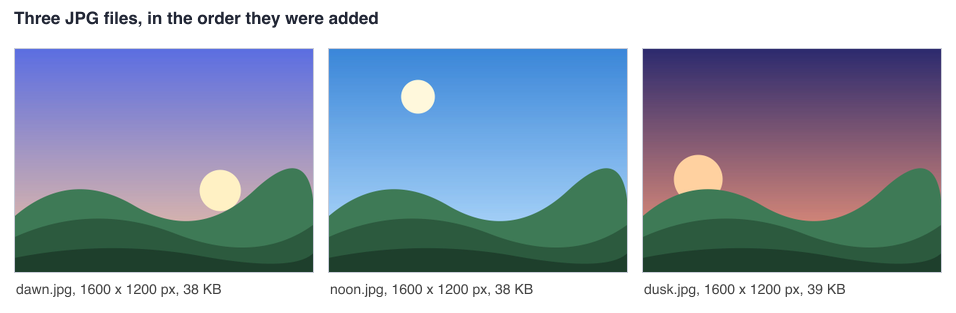
Three JPG files, 115 KB together
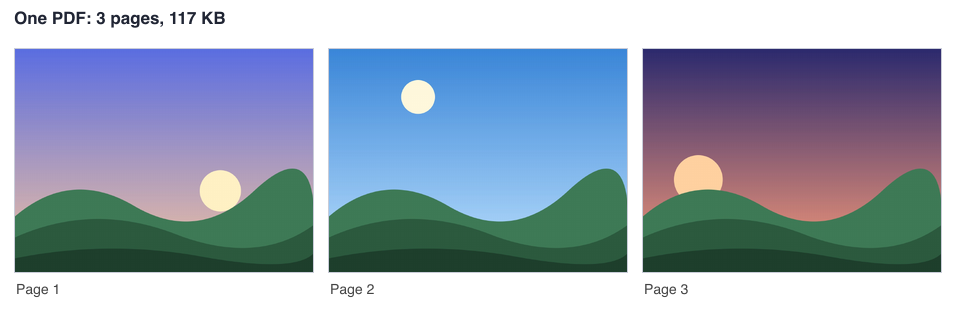
One PDF: 3 pages, 117 KB
How to convert JPG to PDF
Converting a JPG to PDF takes a few clicks, so it works as a simple picture to PDF tool. Add your images, check their order, and run the conversion. Each image is placed on its own page in the PDF.
The result panel shows a preview of the PDF, the number of pages, the file size and the credits used. The file is named images.pdf. If something looks wrong, change the order or settings and run the job again.
Put several JPG files in one PDF
You can add several JPG files at once and combine them into one PDF. Each file becomes one page, so a set of photos gives you a document with one page per photo. The result panel confirms how many pages were made from how many images.
Mixed JPG and PNG files work in the same job. Pages follow the order in the list, so check it before you convert.
- Use the arrows or drag the files to change the order.
- The first image in the list becomes page 1.
Choose the page size
The page size setting controls how each page is sized. With Fit each image, every page takes the size of its image, using 96 pixels per inch. A 1600 x 1200 px image gives a page of 1200 x 900 points, which is 16.7 x 12.5 inches.
With A4 or Letter, the image is centered on the page and scaled to fit inside it, keeping its shape. A small image is enlarged to fit, and the result panel warns you when images were enlarged, because they may look soft.
Margins and orientation
Margin options are None, Small 0.25 in, Medium 0.5 in and Large 1 in. The margin works with every page size. With Fit each image, the page grows by the margin on each side.
Orientation can be automatic, portrait or landscape. Orientation only applies to A4 and Letter pages. Automatic picks portrait or landscape for each page to suit its image. Our test used A4 landscape pages (841.89 x 595.28 points) with a small margin, and the page size was read back with pdfinfo.
Is the image quality kept
JPEG images are not re-compressed. The JPEG data goes into the PDF as it is, so the picture quality stays the same as the original JPG. PNG files are decoded and packed again, so a PDF made from PNG files can be smaller or larger than the files.
In our test, three generated JPG files of 1600 x 1200 px (38, 38 and 39 KB, 115 KB together) became a 3-page PDF of 117 KB. These were generated test files, not real photos, so results vary with the file.
Phone photos and rotation
Many phone photos store a rotation setting in the file, called EXIF orientation. The tool applies that setting, so a photo taken with the phone turned shows upright on the page. The result panel says how many photos were turned.
In our test, a generated JPG of 400 x 200 px with rotation setting 6 (turn 90 degrees clockwise) gave a page of 150 x 300 points, upright. The result panel reported that 1 photo was turned. Results vary with the file.
Limits: images, size and pixels
Limits depend on whether you use an account. Without an account, you can add up to 20 images per PDF, each up to 5 MB, with the images together up to 20 MB. Signed in, the limits are 100 images per PDF, each up to 10 MB, and 100 MB together.
A JPG can be up to 50 megapixels. PNG files can be up to 16,777,216 pixels (16 MP) each. For all PNG files in one job together, the limit is 32 MP without an account and 64 MP signed in. Animated PNG (APNG) files are refused.
Which files are accepted
JPEG to PDF means the same as JPG to PDF here: both are JPEG files. The tool accepts 8-bit JPEG files that are baseline or progressive, with Huffman coding. It also accepts PNG files. Lossless, arithmetic-coded and 12-bit JPEG files are refused.
WebP, GIF, TIFF, BMP, AVIF, HEIC, SVG and PDF files are refused with a message to convert them to JPG first. The file type is read from the first bytes of the file, not from its name. If the data inside a JPG is damaged, we cannot tell, because the file is not decoded, and the damaged picture would show partly in the PDF.
Convert JPG to PDF from code
You can run the same conversion from code with the API. First send each file as raw bytes to https://api.aiipworld.com/v1/uploads, with Content-Type image/jpeg or image/png and one file per request. The answer includes an upload_id. Then send a POST to https://api.aiipworld.com/v1/pdf-jobs with JSON that contains op, params and the files list of upload IDs.
Poll GET /v1/jobs/:id until the job succeeds, fails or times out. The download_url is a short-lived signed link. Requests use Authorization: Bearer <API key> or x-api-key. Each request takes one job, and there is no batch endpoint. The page shows a ready cURL, Node and Python example built from the settings you choose. See /docs/ for the general API.
Possible errors include 400 invalid_params, 413 file_too_large, 422 unsupported_image, 404 upload_not_found, 402 insufficient_credits and 429 for rate limits. A failed job can return error_codes such as unsupported_image, image_too_large and too_many_pixels.
Privacy: what happens to your files
Your file is sent to our server, and the conversion happens there. The uploaded file is used only to make the result. The working copy of the upload is deleted as soon as the job ends, whether it succeeds or fails.
The result is deleted after 10 minutes in the free web tool, and no history is kept. Download links are short-lived. You must have the right to use the images you upload, as set out in our Acceptable Use Policy.
Questions
Can I convert JPG to PDF for free?
Yes, the tool is free to use. Without an account you get 20 PDF jobs per day per visitor, and each uploaded image has its own human check.
How do I put several JPG files in one PDF?
Select several JPG or PNG files at once, or drag them into the list. Each file becomes its own page in one PDF named images.pdf.
How do I change the order of the pages?
Drag the files or use the arrows to change their order. The first image in the list becomes page 1.
Does converting JPG to PDF reduce the quality?
No. JPEG data is not re-compressed, so the picture quality stays as it was. PNG files are decoded and packed again, so the PDF can be smaller or larger than the PNG files.
Why is my PDF as big as the JPG files?
Because JPEG data goes into the PDF unchanged, the PDF is about as large as the JPG files together. In our test, three JPG files of 115 KB together made a 117 KB PDF. Results vary with the file.
Can I use a phone photo?
Yes. The rotation setting stored in a phone JPG is applied, so a photo taken with the phone turned shows upright. The result panel says how many photos were turned.
How many JPG files can I add?
Without an account you can add up to 20 images per PDF. Signed in, the limit is 100 images per PDF.
Can I convert WebP or HEIC photos?
Not directly. WebP, HEIC, GIF, TIFF, BMP, AVIF, SVG and PDF files are refused, so convert them to JPG first.
Does the PDF have a password?
No, the PDF has no password. It is not protected or encrypted.
Can I convert JPG to PDF in my own code?
Yes. Use the API with an upload request, a pdf-jobs request and job polling, as described in the code section above.
Need this in your app or in bulk?
This tool runs on the same platform as the API, so the same merge, split or rotate is two HTTP requests from your code: upload each PDF, then start the job. A free account includes 100 credits a month.