
Vectorize image
Use this tool to vectorize image files: it traces a PNG, JPG, WebP, GIF or BMP picture into an SVG made of vector paths. It is a simple way to turn a picture to SVG, and it suits logos, icons, flat illustrations and line art. You can use it without signing up, and the SVG scales to any size without the blocky edges of a pixel grid.
- Suited to logos, icons, flat illustrations and line art. Photos come out as many flat colour patches.
- Free web tool: up to 5 MB per image and 10 images per day. Each image must be within 16 MP (4096 x 4096).
- Anonymous use needs a human check. The SVG result is deleted after 10 minutes, and no history is kept.
- Tracing does not recover detail that is not in the original. Start from the largest, sharpest version you have.
Drop an image here
PNG, JPG, WebP, GIF or BMP, up to 5 MB
Keeps the colours and the shapes. Best for artwork with few colours.
Advanced settings
Black and white gives one black layer.
Straight edges give a smaller file.
Higher removes more noise (0 to 16)
Lower means fewer colours (1 to 8)
Higher means fewer layers (0 to 255)
Higher means rounder corners (0 to 180)
Complete the human check to enable the button.
Result
Your SVG will appear here.
The free web tool takes images up to 5 MB, 10 per day. Signed in, the limit is 10 MB. Larger images are scaled down before tracing.
Retention: web-tool results are deleted after 10 minutes and no history is kept. API results are kept 1 day on the free plan and 7 days on Starter and Pro (30 days on Business).
No account needed
10 images per day for free, no watermark.
Open-source tracing engine
VTracer, the same engine as the API, turns the pixels into vector paths.
Deleted automatically
Web tool results are removed after 10 minutes.
Privacy: what you submit is used only to make this file. The working copy is deleted when the job ends, the result after 10 minutes. See the privacy policy.
Do this from your code
The same request, built from the input and options above. Create an account to get an API key.
curl -X POST https://api.aiipworld.com/v1/render \
  -H "Authorization: Bearer $AIIPWORLD_API_KEY" \
  -H "Content-Type: application/json" \
  -d '{"html":"","output":"pdf","options":{}}'

# returns {"job_id": "...", "status": "queued"}; then poll:
curl https://api.aiipworld.com/v1/jobs/JOB_ID -H "Authorization: Bearer $AIIPWORLD_API_KEY"
Batches
The web tool handles 1 image at a time. The API takes one request per image, so you can script as many as your plan allows.
Retention
Web-tool results are kept 10 minutes; free API results 1 day; Starter and Pro results 7 days; Business 30 days. The web tool allows 10 conversions per minute and 50 per day per visitor.
In one sentence
A free online tool that vectorizes a PNG, JPG, WebP, GIF or BMP picture by tracing it into an SVG made of filled vector paths.
Key facts
- Presets: logo, icon or flat illustration; black and white line art; and photo with fewer colours. Advanced settings cover colour mode, curve style, specks, colour precision, layer difference and corner threshold.
- Output: an SVG of paths that scales to any size; it does not embed the original pixels.
- Limits: up to 5 MB in the free tool, 10 MB when signed in, 16 MP (4096 x 4096); images above 4 MP (for example 2000 x 2000) are scaled down before tracing.
- The API takes the raw image bytes at POST /v1/image-jobs and costs 5 credits per image.
- Free without an account: up to 10 conversions per minute and 50 per day per visitor, no watermark. Signed in, each render costs 1 credit (100 free credits every month).
- Files are deleted automatically: 10 minutes after conversion without an account, 1 day with a free account.
- Developers can run the same render with POST https://api.aiipworld.com/v1/render and an API key (see the screenshot API page).
How it works
- Choose an image from your computer. The tool accepts PNG, JPG, WebP, GIF and BMP files, up to 5 MB per image.
- Choose the kind of image: logo, icon or flat illustration, black and white line art, or photo. Each choice sets starting values.
- Open the advanced settings only if you need to change colours, curves, specks or precision. Changing any value switches the menu to Custom settings.
- If you are not signed in, complete the human check. Then press Vectorize image.
- Check the preview on its checkerboard background and the file size, then press Download SVG.
Example output
Original PNG, 1200 x 900 px, 100 KB
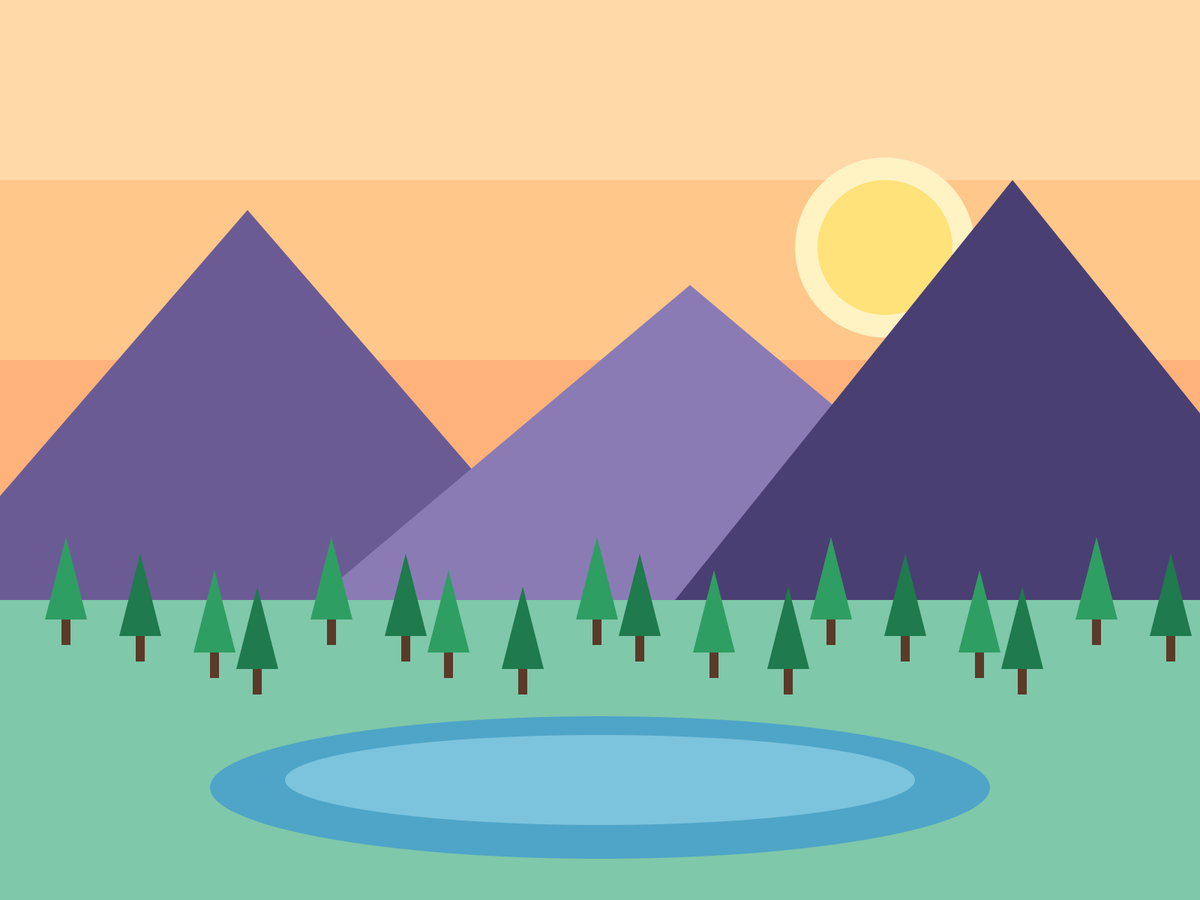
Traced SVG, 51 paths, 49 KB
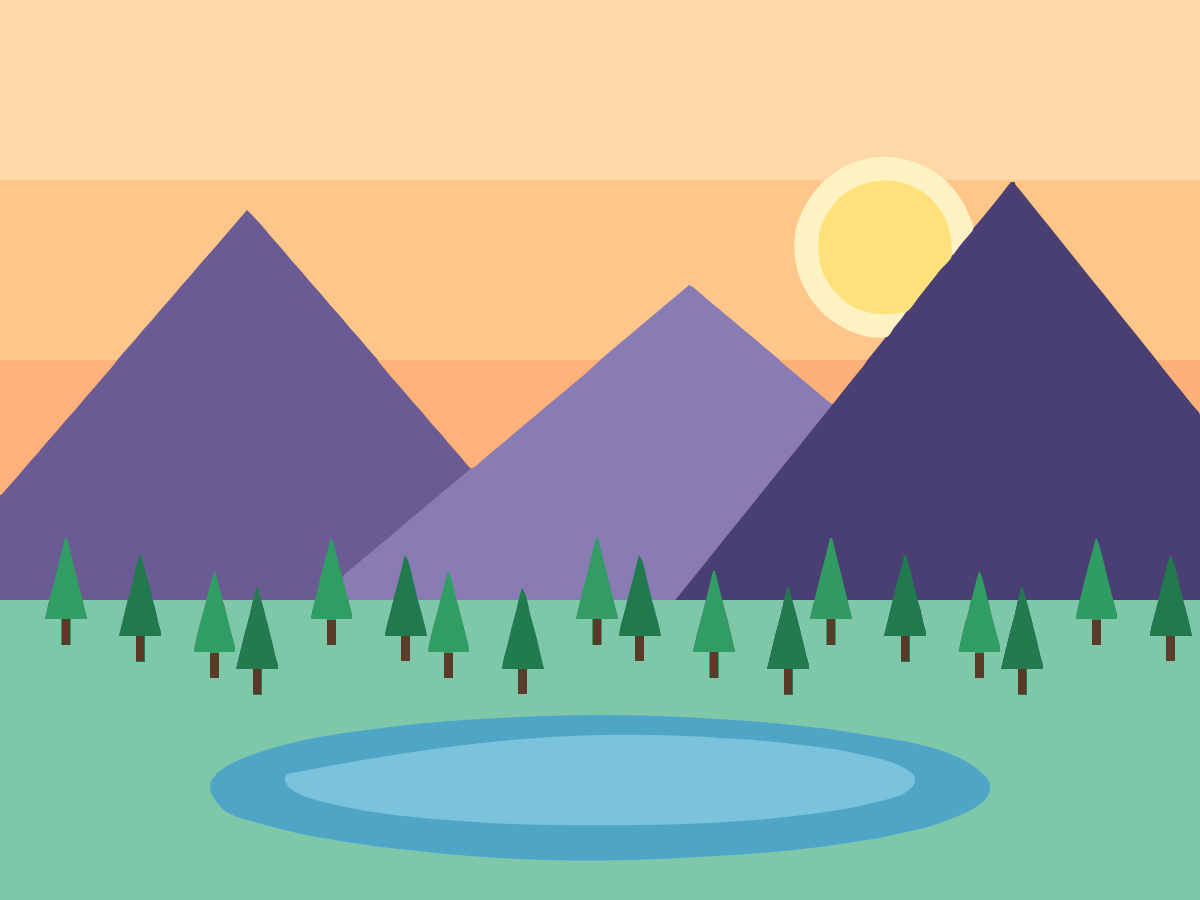
Original, enlarged 6 times
SVG, enlarged 6 times
How to vectorize an image
Open the image vectorizer and choose the picture you want to convert. The tool accepts PNG, JPG (JPEG), WebP, GIF and BMP files. It checks the file type from the content, not from the file name.
Before the upload starts, the browser checks the type, size and pixel count of the file. It then shows a preview with the image size, so you can confirm you chose the right picture.
Choose the kind of image, press Vectorize image, and wait for the job to finish. The tool then shows the SVG on a checkerboard so you can see the transparent areas.
Download the SVG when the result looks right. If it does not, change one or two settings and run the job again. Use the PNG to SVG tool or the JPG to SVG tool if your file is one of those formats and you want a page for that format.
What it means to vectorize an image
This is what people mean by image to vector conversion. A raster picture is a grid of pixels. Each pixel holds one colour, so the picture has a fixed number of pixels and turns blocky when you enlarge it far enough.
A vector picture is a set of paths: points joined by lines and curves, each filled with a colour. Because the paths are described by math rather than a grid, the SVG can be scaled to any size with clean edges.
To vectorize an image means to trace it. The program finds areas of similar colour, fits curves around each area and writes the result as filled paths in a new file.
The SVG has a width, a height and a viewBox, so it can be used at any size. Letters in the picture become shapes, not editable text.
Vectorizing is not the same as embedding
Embedding puts a raster picture inside an SVG file as an image element. The file is labelled SVG, but the pixels are still there, so enlarging it still shows the pixel grid.
Vectorizing replaces the pixels with filled paths. The SVG that this tool makes contains only filled paths: no embedded raster image, no text elements, no scripts and no links.
The result panel shows the number of vector paths. A file with paths and no image inside is the kind of file this tool makes. To convert a picture to SVG this way, check that the path count is what you expect.
- Embedded: a raster image wrapped in an SVG file, still made of pixels.
- Vectorized: traced shapes made of filled paths, which scale cleanly.
Which images vectorize well
The tool suits logos, icons, flat illustrations, line art, signatures, silhouettes and scanned drawings. These usually have a few solid colours and sharp edges, which suit the tracing method.
Transparent PNG, WebP and GIF files keep their transparency, so a logo on a transparent background stays transparent. A JPG has no transparency, so its background becomes a coloured shape behind the drawing.
Start from the largest, sharpest version you have. A blurry or low-resolution source gives rough edges, and small text becomes shapes rather than editable text.
- Logos and icons with a few solid colours.
- Flat illustrations and drawings with sharp edges.
- Black and white line art, signatures and silhouettes.
- Scanned drawings, after you have cropped them to the picture.
Photos and shaded artwork
Photos and images with smooth gradients, shadows or fine texture do not trace well. The shading turns into many flat colour patches, which gives a posterised look.
With default settings, a photograph can produce a very large SVG, many megabytes with thousands of paths. The Photo preset makes a much smaller file, but it loses detail.
Tracing does not add back detail that is not in the original. Gradients become bands of flat colour, so expect a stylised result rather than a copy of the photo.
Settings explained
The 'What kind of image is it?' menu sets a group of values. Logo, icon or flat illustration is the default: full colour, remove specks smaller than 4 px, colour precision 6, colour layer difference 16, corner threshold 60 and smooth curves.
Black and white line art makes one black layer on a transparent background. The Photo preset uses fewer colours for a smaller file: remove specks 16, colour precision 5 and colour layer difference 32.
Open the advanced settings to change single values. JPEG noise around edges can show up as specks, so raise remove specks to clean it.
- Colours: full colour or black and white.
- Curve style: smooth curves or straight edges.
- Remove specks smaller than: 0 to 16 px.
- Colour precision: 1 to 8. Lower means fewer colours.
- Colour layer difference: 0 to 255. Higher means fewer layers.
- Corner threshold: 0 to 180 degrees. Higher means rounder corners.
Formats and size limits
The tool accepts PNG, JPG (JPEG), WebP, GIF and BMP. BMP files must be uncompressed 8, 24 or 32-bit. SVG, PDF, TIFF, HEIC and AVIF files are not accepted, so export those as PNG or JPG first.
For a GIF or an animated WebP, only the first frame is traced. JPG photos from phones are turned upright using their orientation tag.
An image larger than 4 MP (for example 2000 x 2000) is scaled down before tracing. The SVG is still made of vector paths, and the result panel shows the traced size.
If the SVG would be larger than 20 MB, the job fails with an output too large message. It does not return a cut-off file. Raising remove specks or lowering colour precision gives a smaller file.
- Free web tool: up to 5 MB per image and 10 images per day.
- Signed-in users: up to 10 MB per image.
- Every image must be within 16 MP (4096 x 4096).
- Signed-in users use 5 credits per image, plus 1 credit per 5 MB of SVG after the first 5 MB.
Image to SVG from code
You can run the same tracing from code through the API. Send a POST request to the image jobs path, /v1/image-jobs, on the API host. The body is the raw image bytes, not JSON and not multipart form data.
Set the Content-Type header to image/png, image/jpeg, image/webp, image/gif or image/bmp. Send your API key in the Authorization header as Bearer followed by the key, or in the x-api-key header.
Settings go in the query string. The operation op=image_to_svg is the default and the only one. Colormode can be color or binary, hierarchical can be stacked or cutout, and mode can be spline or polygon. Unknown names are rejected.
The request returns a 202 response with a job_id, the status queued and the credits reserved. Poll GET /v1/jobs/:id until the status is succeeded, failed or timeout.
When the job succeeds, the result gives bytes, width, height, paths, src_width, src_height and downscaled. Download the file from download_url. That link is short-lived, so download the SVG soon after the job finishes.
Failed and timed-out jobs are refunded. The API has no batch endpoint, so send one request per image. Webhooks are not available yet.
- filter_speckle: 0 to 16.
- color_precision: 1 to 8.
- layer_difference: 0 to 255.
- corner_threshold: 0 to 180.
- segment_length: 3.5 to 10.
- splice_threshold: 0 to 180.
- path_precision: 0 to 4.
- timeout_sec: 1 to 60.
Privacy: what happens to your file
Your image is sent to our server, because the tracing runs there and not in your browser. The uploaded image is used only to make the SVG, and it is deleted as soon as the job ends, whether the job succeeds or fails.
The SVG result from the free web tool is deleted after 10 minutes. No history of your conversions is kept, so download the SVG before that time. Download links are short-lived.
Only upload images you have the right to use. Tracing a logo or artwork you do not own does not give you the rights to it. See the Acceptable Use Policy for the rules.
Questions
What does vectorize an image mean?
To vectorize an image means to trace it: the tool groups pixels of similar colour into shapes and writes each shape as filled vector paths in an SVG file. The result can be scaled to any size.
Can I vectorize an image for free?
Yes. The free web tool lets you vectorize up to 10 images per day, each up to 5 MB, and anonymous use needs only a human check. Signed-in users have a per-image limit of 10 MB and use 5 credits per image.
Which image formats can I vectorize?
You can vectorize PNG, JPG (JPEG), WebP, GIF and BMP files. For GIF and animated WebP files, only the first frame is traced, and SVG, PDF, TIFF, HEIC and AVIF files are not accepted. To convert image to vector files in this way, start with the picture in one of these formats.
Will my logo keep its transparent background?
Yes, if the logo is a transparent PNG, WebP or GIF: the transparency is kept and no background shape is added. A JPG has no transparency, so its background becomes a coloured shape behind the drawing.
Can I vectorize a photo?
You can upload a photo, but the result is a set of flat colour patches rather than a copy of the photo, and with default settings the SVG can be very large. The Photo preset makes a smaller file that loses more detail, so logos, icons and line art give cleaner results.
Why is the vector file large?
A picture with many shades and gradients is traced into many small shapes, and each shape is a path in the file. Raise remove specks or lower colour precision to produce fewer paths; if the SVG would be larger than 20 MB, the job fails rather than returning a cut-off file.
Is the tool AI?
No. It is a tracing program, not artificial intelligence: it groups pixels of similar colour into shapes and fits curves around them. It does not understand what the picture shows.
Can I edit the vectorized file?
The SVG is a plain file made of filled paths, so it can be edited in software that opens SVG files. Letters become shapes rather than editable text, so retype any text you need to change.
What is the difference between vectorizing and embedding an image in an SVG?
Vectorizing traces the picture into filled paths, so the SVG holds shapes that scale cleanly. Embedding places the original pixels inside an SVG file, which still shows a pixel grid when enlarged; this tool does not embed images.
How long is my file kept?
The uploaded image is deleted as soon as the job ends. The SVG result from the free web tool is deleted after 10 minutes, and no history is kept, so download the SVG before then.
Can I vectorize images in code?
Yes, through the API. Send the raw image bytes in a POST request to the image jobs endpoint, poll the job until it succeeds, then download the SVG from the short-lived download link. The API has no batch endpoint, so send one request per image.
Need this in your app or in bulk?
This tool runs on the same platform as the API, so the same SVG is one HTTP request from your code. A free account includes 100 credits a month.